
Updating your motherboard’s Basic Input/Output System (BIOS) is a crucial step when trying to fix hardware compatibility issues, improve system stability, or support a newly upgraded CPU. However, because the BIOS controls the lowest-level communication of your hardware, flashing it incorrectly can cause permanent system damage. Knowing how to update bios safely windows pc is essential for any tech enthusiast or gamer looking to boost their system performance without risking a bricked motherboard.
In this comprehensive, step-by-step guide, we will walk you through everything you need to know to perform a secure and successful BIOS update on Windows.
Table of Contents
What is BIOS and Why Update It?
The BIOS sits directly on your motherboard’s chip and initializes your hardware components before handing over control to Windows. Updating it (often called “flashing”) provides several benefits: how to update bios safely windows pc
Hardware Compatibility: Allows your motherboard to support newer processors and faster RAM kits.
Security Patches: Fixes low-level vulnerabilities discovered in older microcode.
Bug Fixes: Resolves stubborn system stability issues and hardware recognition errors.
If you’re also experiencing other Windows 10 or 11 Activation Problems, check our guide How to fix windows device manager yellow triangle error.
Important Safety Precautions Before You Begin
Before you touch any flashing utility, keep these critical safety rules in mind:
Never Interrup Power: A power outage during a BIOS update can permanently brick your motherboard. Always use a UPS (Uninterruptible Power Supply) if your local power grid is unstable.
Identify Your Exact Motherboard Model: Never download a BIOS file from a random source. Check your exact motherboard model using
msinfo32or Command Prompt.Do Not Interrupt the Process: Once the flash begins, do not restart, shut down, or reset your PC under any circumstances.
How to Update BIOS Safely on a Windows PC: Step-by-Step
Most modern motherboard manufacturers (like ASUS, MSI, Gigabyte, and ASRock) provide safe, built-in flashing utilities. Follow these steps:
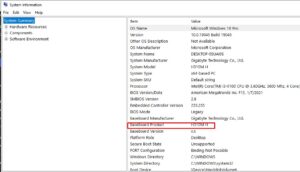
Step 1: Identify Your Motherboard Model
Press
Win + R, typemsinfo32, and press Enter.Look for BaseBoard Manufacturer, BaseBoard Product, and BIOS Version/Date. Note these down accurately.
Step 2: Download the Correct BIOS Update File
Go to your motherboard manufacturer’s official support website (e.g., ASUS, MSI, or Gigabyte).
Search for your exact motherboard model and navigate to the Support / Drivers / BIOS section.
Download the latest stable BIOS version (avoid beta versions unless explicitly required).
Step 3: Prepare a USB Flash Drive
Take a clean USB flash drive and format it to FAT32.
Extract the downloaded BIOS update file and copy the extracted files directly into the root directory of the USB drive. how to update bios safely windows pc.
Step 4: Flash the BIOS via Motherboard Utility
Restart your computer and repeatedly press the key specified for your BIOS (usually
DeleteorF2).Once inside the BIOS interface, locate the built-in flashing utility (e.g., ASUS EZ Flash, MSI M-Flash, or Gigabyte Q-Flash).
Select your USB drive, choose the correct BIOS file you downloaded, and confirm the update.
Let the process reach 100% completion and allow the computer to restart automatically.
Frequently Asked Questions (FAQs)
Q: Do I need to update my BIOS regularly if my PC is working fine?
A: No. The golden rule of PC building is “if it ain’t broke, don’t fix it.” You should only update your BIOS if you are upgrading hardware, experiencing a specific bug, or addressing a critical security flaw.
Q: What happens if my PC loses power during a BIOS update?
A: Losing power during a flash can corrupt the EEPROM chip, resulting in a “bricked” motherboard that will not boot. Many high-end modern motherboards feature “BIOS Flashback” buttons that allow recovery without a CPU, but budget boards may require professional reprogramming. how to update bios safely windows pc.
Conclusion
Flashing your motherboard can seem intimidating, but understanding how to update bios safely windows pc ensures that you can upgrade your system with absolute confidence. By verifying your model, using a stable power source, and following the manufacturer’s flashing utility step-by-step, your PC will run smoothly and securely. For additional hardware documentation, visit Microsoft Support.









