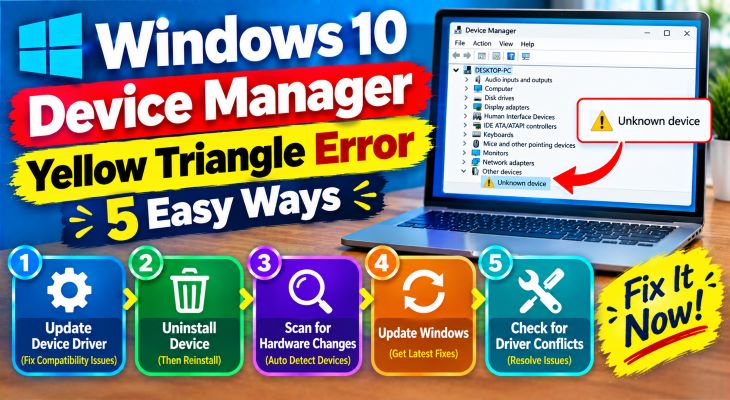
Encountering a warning symbol next to your hardware components can be alarming. When Windows fails to recognize, communicate with, or load software for a piece of hardware, it displays a black exclamation mark inside a yellow triangle. Knowing how to fix windows device manager yellow triangle error is essential for restoring full functionality to your audio, graphics, or network adapters.
In this comprehensive guide, we will walk you through the top methods to resolve yellow triangle warnings and update missing or corrupted drivers on Windows 10 and 11.
Table of Contents
What Causes the Yellow Triangle Error in Device Manager?
Before applying fixes, understanding the common root causes helps:
Outdated or Corrupted Drivers: Missing or faulty driver software prevents Windows from interacting with the hardware.
Hardware Conflicts: Resource clashes between multiple devices connected to the motherboard.
Recent System Updates: A Windows update that accidentally overwrote a stable hardware driver.
Top Ways to Fix Windows Device Manager Yellow Triangle Error.
Method 1: Update the Device Driver
The quickest way to resolve driver-related conflicts:
Press
Win + Xand select Device Manager.Locate the device showing the yellow triangle, right-click on it, and select Update driver.
Choose Search automatically for drivers and follow the on-screen instructions. how to fix windows device manager yellow triangle error.

Method 2: Uninstall and Reinstall the Device
If the driver package is completely corrupted, forcing Windows to reinstall it fresh helps:
Open Device Manager, right-click the problematic device, and select Uninstall device.
Check the box to attempt to remove the driver for this device if available, then click Uninstall.
Restart your computer; Windows will automatically detect the hardware and reinstall a fresh driver upon reboot.
Method 3: Run Hardware and Devices Troubleshooter
Using built-in diagnostic tools can automatically detect hardware malfunctions:
Open Command Prompt as administrator (press
Win + S, typecmd, and select Run as administrator).Type
msdt.exe -id DeviceDiagnosticand press Enter.Follow the troubleshooting wizard to let Windows automatically detect and repair device errors. how To device manager Yellows Triangle Error.
Method 4: Roll Back a Faulty Driver Update
If the error started right after updating a driver:
Right-click the problematic device in Device Manager and select Properties.
Go to the Driver tab and click on Roll Back Driver (if available).
Select your reason for rolling back and click Yes to restore the previous stable version.
- If you’re also experiencing other Windows 10 or 11 Activation Problems, check our guide How to Fix Windows Installer Error 1603.
Frequently Asked Questions (FAQs)
Q: What does Error Code 43 mean next to the yellow triangle?
A: Error Code 43 typically indicates that a hardware device has reported to Windows that it failed. This can be caused by a temporary driver glitch or physical hardware failure.
Q: Can a loose physical connection cause a yellow triangle error?
A: Yes. Components like RAM sticks, graphics cards, or USB devices that are loosely seated in their ports can trigger device manager warnings due to intermittent data transmission.
“Ensuring your hardware components function without hidden conflicts is vital for optimal computer performance. “how to fix windows device manager yellow triangle error.
Conclusion
Facing hardware warnings can stall your daily productivity, but mastering how to fix windows device manager yellow triangle error allows you to restore system performance rapidly. By updating, reinstalling, or rolling back your drivers, your PC will stay error-free. For additional support, visit Microsoft Support.
NOTE: “Sharing practical solutions for common Windows hardware roadblocks helps build strong organic authority, ensuring your tech troubleshooting blog delivers continuous value to readers while maximizing long-term AdSense growth.”









