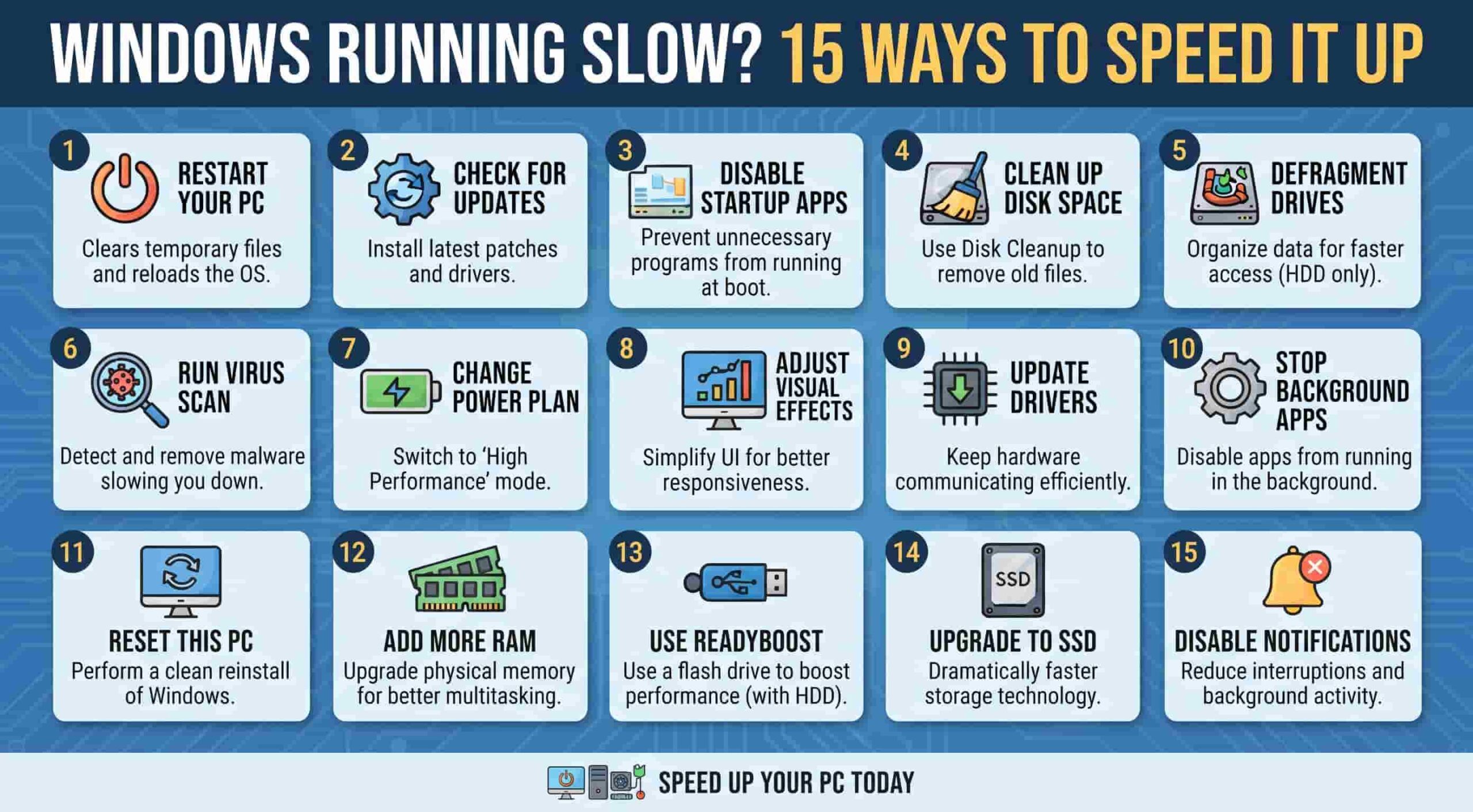
Noticing your system take minutes to boot up, apps freezing mid-task, or a general sluggishness can make using a computer frustrating. Over time, background processes and cluttered cache files accumulate, dragging down overall system performance. Learning how to make Windows 10 run faster can instantly revive your older machine and restore snappy responsiveness.
In this comprehensive, step-by-step troubleshooting guide, we will walk you through the most effective methods to speed up your Windows 10 PC.
Table of Contents
Why Does Windows 10 Slow Down Over Time?
Before diving into the optimization steps, understanding the root causes of system slowdowns helps:
Startup App Overload: Too many applications launching automatically when Windows boots.
Cluttered Temporary Files: Accumulated cache data and junk files eating up storage space.
Outdated System Software: Unoptimized OS versions or lagging graphics drivers.
Visual Effects Overhead: Heavy animations and transparent window graphics consuming RAM and CPU cycles. how to make Windows 10 run faster.
How to Make Windows 10 Run Faster: 15 Easy Steps
Step 1: Disable Unnecessary Startup Programs
Press Ctrl + Shift + Esc to open Task Manager.
Click on the Startup tab.
Review the list of apps and right-click any non-essential program with a “High” startup impact, then select Disable.
Step 2: Turn Off Visual Effects and Animations
Press
Win + R, typesysdm.cpl, and hit Enter to open System Properties.Go to the Advanced tab and click Settings under the Performance section.
Select Adjust for best performance (or manually uncheck unnecessary animations) and click OK.
Step 3: Run the Disk Cleanup Tool
Open the Start menu, type Disk Cleanup, and press Enter.
Select your main drive (usually
C:).Check the boxes for temporary files, thumbnail cache, and downloaded program files, then click Clean up system files.
Step 4: Enable Storage Sense for Automatic Cleanup
Open Windows Settings (Win + I).
Go to System > Storage.
Toggle Storage Sense to On so Windows automatically deletes temporary files and unneeded clutter.
Step 5: Uninstall Bloatware and Unused Apps
Open Settings (Win + I) and navigate to Apps > Apps & features.
Scan through the list and click Uninstall on any heavy software or games you no longer use.
Step 6: Adjust Power Plan for Maximum Performance
Open the Control Panel, search for Power Options.
Select High performance or Ultimate Performance mode to let your CPU run at full speed.
Step 7: Disable Background Apps
Go to Settings (Win + I) > Privacy > Background apps.
Toggle off apps that you don’t need running or receiving notifications in the background.
Step 8: Check for Windows and Driver Updates
Open Settings > Update & Security > Windows Update.
Click Check for updates and install any pending system patches and hardware drivers.
Step 9: Run an Antivirus Malware Scan
Open Windows Security from the system tray.
Go to Virus & threat protection and click Quick scan (or run a Full scan) to rule out background malware miners.
Step 10: Clear Temporary Files Manually via Run
Press
Win + R, type%temp%, and press Enter.Select all files inside the folder (
Ctrl + A) and delete them permanently (Shift + Delete).
Step 11: Defragment or Optimize Your Drives
Open the Start menu, type Defragment and Optimize Drives, and open it.
Select your drives and click Optimize (especially helpful for HDDs; TRIMs automatically for SSDs).
Step 12: Turn Off Game Bar and Captures
Go to Settings > Gaming > Xbox Game Bar.
Turn off Enable Xbox Game Bar if you don’t use it for gaming recordings, saving background RAM.
Step 13: Run SFC and DISM System File Scans
Open Command Prompt as administrator (
Win + S, typecmd, right-click).Run
sfc /scannow, followed byDISM /Online /Cleanup-Image /RestoreHealthto repair corrupted system files.
Step 14: Adjust Virtual Memory (Pagefile) Settings
Open System Properties > Advanced > Performance Settings > Advanced tab.
Click Change under Virtual memory, uncheck automatic management, and set a custom initial/maximum size if you run low on RAM.
Step 15: Reset or Clean Install Windows 10
If all else fails, a clean slate clears out deep-rooted performance bloat:
Go to Settings > Update & Security > Recovery.
Under Reset this PC, click Get started and choose whether to keep your files or perform a complete wipe.
If you’re also experiencing other Windows 11 Activation Problems, check our guide on How to Fix Windows Explorer Crashing Repeatedly.
Frequently Asked Questions (FAQs)
Q: Does upgrading to an SSD speed up Windows 10 significantly?
A: Yes, upgrading from a traditional mechanical hard drive (HDD) to a Solid State Drive (SSD) provides the single biggest boost to boot times and app responsiveness.
Q: Will deleting temporary files delete my personal documents?
A: No, temporary files (%temp%) only contain cache and junk data created by apps and the operating system; your personal files remain untouched. how to make Windows 10 run faster.
Conclusion
A sluggish computer can ruin your productivity, but knowing how to make Windows 10 run faster gives you total control over your system’s performance. By clearing junk files, disabling startup bloat, and updating drivers, your PC will feel brand new. For additional support, visit Microsoft Support.









