

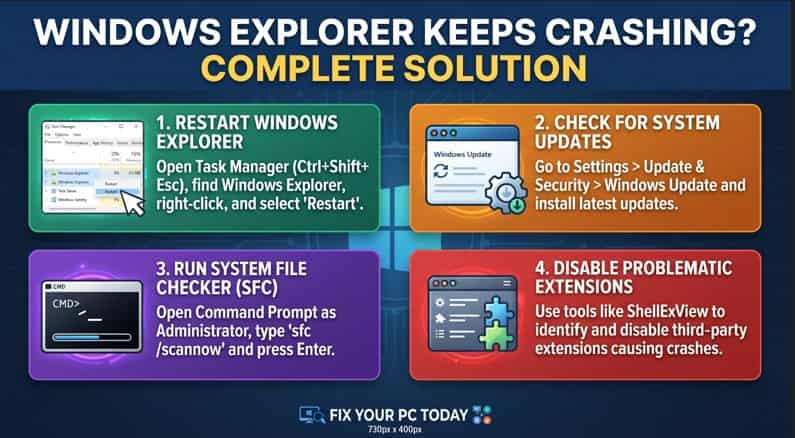
Finding your desktop flashing, taskbar disappearing, or File Explorer windows freezing unexpectedly can bring your workflow to a complete standstill. When the core shell of your operating system malfunctions, learning how to fix Windows Explorer crashing repeatedly is essential to restore system stability and smooth navigation.
In this step-by-step troubleshooting guide, we will walk you through the most effective methods to diagnose and resolve Windows Explorer crashes on your PC.
Table of Contents
Why Does Windows Explorer Keep Crashing?
Before jumping into the solutions, it helps to understand what usually triggers these crashes:
Corrupted File History or Quick Access Cache: Overloaded or corrupted temporary cache data inside File Explorer.
Faulty Shell Extensions: Third-party context menu items or software adding incompatible extensions to Windows Explorer.
Corrupted System Files: Damaged core Windows system files due to unexpected shutdowns or malware.
Outdated Operating System: Missing critical updates that patch system stability bugs.
How to Fix Windows Explorer Crashing Repeatedly: 5 Easy Methods
Method 1: Restart Windows Explorer via Task Manager
The quickest way to refresh a glitchy shell process without rebooting your whole PC:
Press Ctrl + Shift + Esc to open Task Manager.
Under the Processes tab, scroll down and look for Windows Explorer (or
explorer.exe).Right-click on it and select Restart. (Your taskbar and desktop will briefly disappear and reappear, which is normal).
Method 2: Clear File Explorer History and Cache
Clearing cluttered temporary access logs often resolves freezing issues:
Open the Start menu, type File Explorer Options, and press Enter.
Under the General tab, look at the Privacy section at the bottom.
Click the Clear button next to “Clear File Explorer history”.
Click Apply, then OK, and check if the crashing stops.
Method 3: Run SFC and DISM Scans
Corrupted system files are a primary culprit behind repeating system crashes:
Press
Win + S, typecmd, right-click Command Prompt, and select Run as administrator.Type the following command and press Enter:
sfc /scannowWait for the scan to finish. Once complete, type the following DISM command and press Enter:
DISM /Online /Cleanup-Image /RestoreHealthRestart your computer after both scans are complete.
Method 4: Check for Faulty Shell Extensions (Using ShellExView)
Third-party context menu handlers often crash explorer.exe when you right-click files:
Download a trusted utility like ShellExView from NirSoft.
Run the application and filter the list to show non-Microsoft context menu handlers (usually colored pink).
Disable suspicious third-party extensions one by one, then restart Windows Explorer to find the culprit.
If you’re also experiencing other Windows 11 Activation Problems, check our guide on How to Fix Touchpad Not Working on Windows Laptop.
Method 5: Create a New User Account
If your current user profile configuration is deeply corrupted, creating a fresh profile can solve persistent crashes:
Open Windows Settings (Win + I).
Go to Accounts > Other users (or Family & other users).
Click Add account and follow the prompts to create a brand-new local user profile.
Log into the new account to see if Windows Explorer runs smoothly.
Frequently Asked Questions (FAQs)
Q: What is the difference between Internet Explorer and Windows Explorer?
Ans: Internet Explorer is a retired web browser, whereas Windows Explorer (renamed File Explorer in newer versions) is the graphical user interface managing your desktop, taskbar, and file management system.
Q: Will clearing File Explorer history delete my saved files?
Ans: No, clearing history only removes the list of recently accessed files and folders from your quick access view; it does not delete your actual data files.
Conclusion
Dealing with a looping system crash can halt productivity, but knowing how to fix Windows Explorer crashing repeatedly allows you to restore stability instantly. By restarting the process, clearing cache, or repairing system files, your desktop will run smoothly again. For additional support, visit Microsoft Support.