Device drivers act as the essential bridge between your Windows 11 operating system and hardware components like graphics cards, audio devices, and network adapters. When these files get damaged or outdated, you may experience system crashes, peripheral malfunctions, or performance drops. Learning how to fix corrupted drivers windows 11 allows you to restore system stability and ensure all your hardware components communicate seamlessly.
In this comprehensive, step-by-step guide, we will walk you through the most effective methods to identify and repair faulty drivers on your Windows 11 PC.
Table of Contents
Why Do Drivers Get Corrupted in Windows 11?
Understanding the common causes of driver failure helps you prevent future issues:
Improper System Updates: Interrupted or faulty Windows updates can overwrite stable driver configurations.
Abrupt System Shutdowns: Power cuts or forced shutdowns while hardware is active can damage system registry entries.
Incompatible Third-Party Software: Installing conflicting optimization tools or rogue software.
Malware Infections: Malicious software targeting core system files and device controllers.
How to Fix Corrupted Drivers Windows 11: 4 Easy Methods
Method 1: Use Device Manager to Update or Reinstall Drivers
The most direct way to manage and fix specific hardware component drivers:
Press
Win + Xand select Device Manager from the menu.Look for any device marked with a yellow exclamation mark (indicating a driver issue).
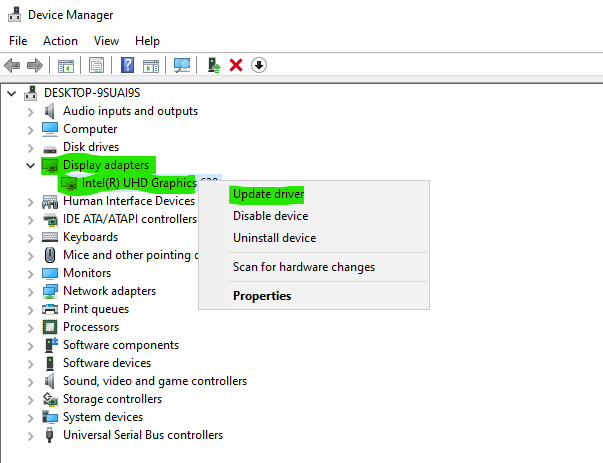
Right-click the problematic device and select Update driver, then choose Search automatically for drivers.
If updating fails, right-click it again, select Uninstall device, and restart your computer. Windows 11 will automatically reinstall a fresh, clean copy of the driver upon reboot.
Method 2: Run an SFC and DISM Scan
System file checkers help repair underlying corruption that affects driver operations:
Click the Start menu, type
cmd, right-click Command Prompt, and select Run as administrator.Type the following command and press Enter:
sfc /scannowOnce the scan completes, type the following command to repair the system image and press Enter:
DISM /Online /Cleanup-Image /RestoreHealthRestart your computer after the scans finish. Best How to Fix Windows 10 from USB.

Method 3: Roll Back to a Previous Driver Version
If a recent update caused the corruption, reverting to the old stable version is best:
Open Device Manager and expand the category of your device (e.g., Display adapters).
Right-click your device and select Properties.
Go to the Driver tab and click on the Roll Back Driver button (if available).
Follow the prompts to restore the stable previous version.
Method 4: Check for Optional Windows Updates
Windows 11 frequently releases specific manufacturer driver patches through Windows Update:
Go to Settings > Windows Update.
Click on Advanced options.
Select Optional updates and expand the Driver updates section.
Check any available hardware updates and click Download & install. Preventing future driver failures involves regular system updates and avoiding unreliable third-party driver updaters.
Frequently Asked Questions (FAQs)
Q: Will reinstalling a driver delete my personal files?
A: No, uninstalling or reinstalling device drivers only affects software communication components and will not touch your personal documents, photos, or apps.
Q: Should I use third-party driver update software?
A: It is generally recommended to use official manufacturer software or built-in Windows tools to avoid installing unstable or unverified driver packages.
Conclusion
Knowing how to fix corrupted drivers windows 11 ensures your computer stays fast, responsive, and completely free from hardware communication errors. By utilizing built-in tools like Device Manager and System File Checker, you can easily resolve driver conflicts and maintain peak performance. For official support., visit Microsoft Support.









