


If you want to fix windows 10 high cpu usage svchost, encountering continuous system slowdowns, fans spinning at max speed, or Task Manager showing Service Host processes consuming 90%–100% CPU can severely disrupt your PC performance. If you have been searching for an effective method to fix windows 10 high cpu usage svchost, you are in the right place. This frustrating system issue typically occurs due to corrupted Windows Update background downloads, glitched System Event Notification Services, memory leaks in background network services, or malware masking itself as system processes.
In this comprehensive guide, we will walk you through the top troubleshooting steps to locate the exact culprit behind svchost.exe and restore smooth processor performance on Windows 10.
Table of Contents
What Causes High CPU Usage from Svchost in Windows 10?
Before applying the fixes, understanding why this happens helps:
Stuck Windows Update Services: The background Windows Update (
wuauserv) service getting stuck in a loop while searching or downloading updates.Corrupted Event Log & Delivery Optimization: Windows Delivery Optimization (
DoSvc) using excessive CPU to share update files across local network connections.Malware Impersonation: Third-party malicious executables hiding inside system directories under the official process name
svchost.exe.
Top Methods to Fix Windows 10 High CPU Usage Svchost
Method 1: Identify and Stop the Specific Svchost Service
Using Task Manager to pinpoint the exact underlying service running under the svchost.exe container process:
Press
Ctrl + Shift + Escto open Task Manager.Click the Details tab and locate the specific svchost.exe instance taking high CPU percentage.
Right-click that specific
svchost.exeprocess and select Go to service(s).Task Manager will highlight the exact background service (e.g.,
wuauservorDoSvc). Right-click the service name and select Stop.Verification: Check your CPU usage graph in Task Manager to confirm the usage drops back under 5%.
Method 2: Reset Windows Update Components
Clearing temporary update cache files prevents svchost.exe from looping on corrupt update packages:
Press
Win + S, typecmd, right-click Command Prompt, and select Run as administrator.Type the following commands one by one, pressing Enter after each:
net stop wuauservnet stop bitsPress
Win + R, typeC:\Windows\SoftwareDistribution, and press Enter. Delete all files inside this folder.Return to Command Prompt and restart the services by typing
net start wuauservandnet start bits.Verification: Reopen Task Manager to verify that
wuauservno longer triggers continuous processor spikes.- If you’re also experiencing other windows 10 & 11 Best Ways: Windows 10 Enterprise License Expired Fix
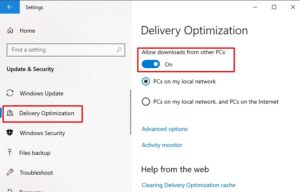
Method 3: Disable Windows Delivery Optimization
Preventing background peer-to-peer update sharing stops network-related svchost.exe resource spikes:
Press
Win + Ito open Settings, then click on Update & Security.Select Delivery Optimization from the left sidebar.
Toggle off “Allow downloads from other PCs”.
Restart your computer.
Verification: Monitor your CPU and disk usage in Resource Monitor to ensure
DoSvcremains idle.
Frequently Asked Questions (FAQs)
Q: Is svchost.exe a virus or critical system file?
A: svchost.exe (Service Host) is a legitimate, critical Windows system process used to host HTML, DLL, and system background services. However, malware can sometimes disguise itself using the same process name.
Q: How can I tell if svchost.exe is real or malware?
A: Official Windows svchost.exe files are strictly located in the C:\Windows\System32 directory. Right-click the process in Task Manager and click Open file location to verify its authenticity.
Conclusion
Keeping your system services operating cleanly ensures a fast, highly responsive computing experience. By mastering these techniques to fix windows 10 high cpu usage svchost, you can eliminate background process bottlenecks and maintain maximum CPU efficiency.
Important Note:
Always run a full system scan with Windows Defender or a trusted antivirus software if you locate an
svchost.exefile outside the official System32 folder.
Final Thoughts on Svchost Optimization and Performance
To wrap it up, maintaining an optimized background service configuration and clean update cache is crucial for long-term operating system efficiency. By proactively isolating heavy service host instances and managing Windows update components, you protect your system against sudden performance drops and keep your CPU running cool. Always maintain regular restore points before executing deep system service modifications. Staying proactive with modern diagnostic tools guarantees long-term PC stability and peace of mind.