While graphical interfaces are user-friendly, mastering the Command Prompt unlocks deep system diagnostic and repair powers. When Windows encounters stubborn boot errors, corrupted system files, or persistent network failures, knowing the best CMD commands for Windows troubleshooting can save your PC from total system failure.
In this comprehensive guide, we will walk you through the top Command Prompt utilities every Windows 10 and 11 user should know.
Table of Contents
Why Use Command Prompt for Troubleshooting?
“Executing the best CMD commands for Windows troubleshooting directly inside an elevated command prompt allows you to bypass messy registry menus and instantly target the root cause of system instability. “Before jumping into the commands, understanding why CMD is effective helps:
Direct System Access: Bypasses buggy graphical menus to interact directly with core OS components.
Lightweight and Fast: Executes deep repair operations instantly using minimal system resources.
Recovery Environment Friendly: Accessible even when Windows fails to boot into the normal desktop.
Top 5 CMD Commands for Windows Troubleshooting
1. Check and Repair System Files (SFC)
The System File Checker scans and replaces missing or corrupted protected operating system files:
Press
Win + S, typecmd, right-click on Command Prompt, and select Run as administrator.Type
sfc /scannowand press Enter.Wait for the scan to reach 100% and restart your computer if any files are repaired.
2. Repair System Image Health (DISM)
If SFC fails to fix underlying component store corruption, the Deployment Image Servicing and Management tool restores system integrity:
Open Command Prompt as administrator.
Type
DISM /Online /Cleanup-Image /RestoreHealthand press Enter.Allow the command to download fresh system files from Windows Update.
3. Scan and Fix Hard Drive Errors (CHKDSK)
To check your storage drive for bad sectors and file system errors:
“Executing the best CMD commands for Windows troubleshooting directly inside an elevated command prompt allows you to bypass messy registry menus and instantly target the root cause of system instability.”
Open Command Prompt as administrator.
Type
chkdsk C: /f /r(replaceC:with your target drive letter) and press Enter.Type Y if prompted to schedule the scan on the next system restart.
- If you’re also experiencing other Windows 10 or 11 Activation Problems, check our guide How to Create a Windows Repair Bootable USB.
4. Reset Network Configurations (IPConfig)
To clear corrupted DNS caches and renew your IP address when facing internet connection drops:
Open Command Prompt as administrator.
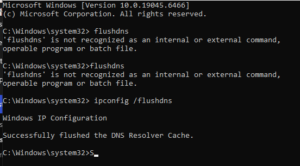
Type
ipconfig /flushdnsand press Enter, followed byipconfig /renew.
5. View Detailed Network Connections (Netstat)
To track active connections and identify unauthorized background network traffic:
Open Command Prompt as administrator.
Type
netstat -anand press Enter to list all open ports and established connections.
Frequently Asked Questions (FAQs)
Q: Do I need administrator rights to run these CMD commands?
A: Yes. System repair commands like SFC, DISM, and CHKDSK modify core system files and require elevated administrator privileges.
Q: Can I run these commands in Safe Mode?
A: Absolutely. Running diagnostic commands in Safe Mode or through Advanced Startup Command Prompt is often the best way to fix unbootable systems.
Conclusion
“Additionally, keeping a routine check on your system files and network configurations via command-line utilities prevents minor errors from escalating into severe operating system crashes, ensuring your PC remains responsive and optimized for daily tasks. ” Equipping yourself with the best CMD commands for Windows troubleshooting gives you ultimate control over system stability and error resolution. By regularly utilizing tools like SFC, DISM, and CHKDSK, you can keep your computer running smoothly and securely. For additional support, visit Microsoft Support.
NOTE “For anyone operating within the Windows tips and troubleshooting niche, mastering command-line tools is essential. Publishing content that solves deep technical hurdles—such as fixing corrupted system files or resolving network drops—not only builds long-term organic authority through high search volume, but it also creates prime opportunities for monetization through AdSense and technical resource recommendations.”