


If you want to fix windows 10 pin setup error something went wrong, facing login screens where Windows prevents you from setting up or using your Windows Hello PIN can completely lock you out of your system. If you have been searching for an effective method to fix windows 10 pin setup error something went wrong, you are in the right place. This frustrating system error typically occurs due to corrupted Ngc cache folder permissions, malfunctioning TPM (Trusted Platform Module) chips, or broken Microsoft Account sign-in services.
In this comprehensive guide, we will walk you through the top troubleshooting steps to clear corrupted credential stores and restore your PIN setup functionality on Windows 10. fix windows 10 pin setup error something went wrong.
Table of Contents
What Causes Windows 10 PIN Setup Errors?
Before applying the fixes, understanding why this happens helps:
Corrupted Ngc Folder: Damaged security encryption keys stored inside the Windows system
Ngcdirectory blocking new credentials.TPM Chip Cache Bottlenecks: The security hardware chip maintaining outdated security state data.
Glitched Microsoft Account Sync: Temporary authentication desynchronization between local security tokens and online account credentials.
Top Methods to Fix Windows 10 PIN Setup Error Something Went Wrong
Method 1: Delete the Corrupted Ngc System Folder
Clearing the Windows PIN security folder forces the operating system to rebuild a fresh credential container:
Boot your computer into Safe Mode or log in using your account Password instead of PIN.
Open File Explorer (
Win + E) and navigate to:C:\Windows\ServiceProfiles\LocalService\AppData\Local\MicrosoftLocate the Ngc folder. Right-click it, select Properties, go to the Security tab, and take ownership of the folder if access is denied.
Delete all files and subfolders contained inside the Ngc directory.
Verification: Go to Settings > Accounts > Sign-in options and click Set up under Windows Hello PIN to verify setup proceeds without errors.
Method 2: Reset the TPM Security Chip via TPM Management
Clearing the security module resets hardware keys associated with Windows Hello authorization: fix windows 10 pin setup error something went wrong.
Press
Win + R, typetpm.msc, and press Enter to launch TPM Management.In the right-hand Actions panel, click Clear TPM.
Restart your computer when prompted to allow your system BIOS/UEFI to confirm hardware initialization.
Verification: Check if Windows Hello prompts you to configure a new PIN cleanly after rebooting.
Method 3: Switch to a Local Account and Re-link Microsoft Account
Disconnecting and re-linking your user profile clears broken account tokens:
Press
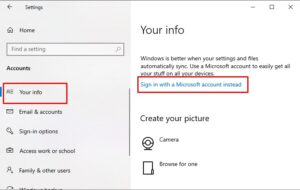
Win + Ito open Settings and select Accounts.Under Your info, click Sign in with a local account instead and complete the quick wizard steps.
Restart your PC, return to the same menu, and click Sign in with a Microsoft account instead.
Verification: Follow the on-screen prompts to add your account and successfully establish a new PIN code.
- If you’re also experiencing other windows 10 & 11 Best Ways: Fix Windows 10 High CPU Usage Svchost
Frequently Asked Questions (FAQs)
Q: Why does Windows say “Something went wrong” when I try to add a PIN?
A: This usually indicates that the Ngc folder storing your device security keys is corrupted, or the system TPM chip failed to store the cryptographic token.
Q: Will deleting the Ngc folder delete my personal files?
A: No, the Ngc folder only holds Windows Hello biometric and PIN encryption data. Your personal documents, apps, and photos remain completely unaffected.
Conclusion
Keeping your system authentication profiles healthy ensures a fast, secure login experience. By mastering these techniques to fix windows 10 pin setup error something went wrong, you can eliminate security container glitches and maintain smooth PC operation. “Staying proactive with modern diagnostic tools helps you fix windows 10 pin setup error something went wrong easily and guarantees long-term PC health.”
Important Note:
Always ensure you know your Microsoft Account password or password backup before resetting PIN folders or clearing the TPM chip.
Final Thoughts on Windows Hello and System Security
To wrap it up, maintaining clean security containers and a healthy TPM state is essential for operating system stability and hassle-free authentication. By proactively clearing corrupt credential folders and resetting authentication tokens, you protect your system against login lockouts and maintain peak digital efficiency. Always keep regular backups of your critical security credentials before executing system policy changes. Staying proactive with modern diagnostic tools guarantees long-term PC health and peace of mind.