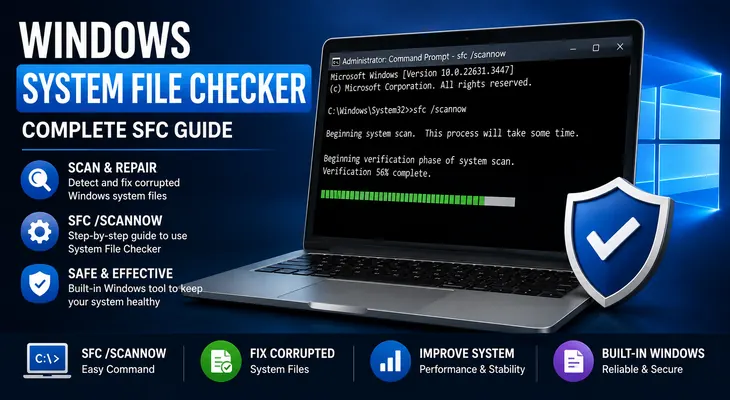
Are you experiencing Windows errors, crashes, missing system files, or unexpected problems? Corrupted Windows system files can sometimes be responsible for these issues.
Fortunately, Windows includes a built-in tool called System File Checker, commonly known as SFC. It can scan protected Windows system files and attempt to repair corrupted files.
In this guide, you’ll learn how to use Windows System File Checker, how to run the sfc /scannow command, what the scan results mean, and what to do if SFC cannot repair the detected problems.
What Is Windows System File Checker?
Windows System File Checker is a built-in Windows utility designed to check protected system files for corruption.
The tool is commonly used from an elevated Command Prompt.
The most commonly used command is:
sfc /scannowWhen you run this command, Windows scans protected system files and attempts to repair problems it finds. Windows 10 System Restore
When Should You Use System File Checker?
SFC can be useful when Windows is experiencing unexplained system problems.
You may consider running an SFC scan if you notice:
- Windows applications crashing unexpectedly
- System errors
- Corrupted or missing Windows files
- Windows features not working correctly
- Unexpected system behavior
- Problems after an improper shutdown
- Certain Windows components behaving incorrectly
However, SFC is not a universal solution for every Windows problem.
If the issue is caused by failing hardware, malware, incompatible software, or another underlying problem, an SFC scan may not resolve it.
How to Run Windows System File Checker
The easiest way to use Windows System File Checker is through Command Prompt as Administrator.
Step 1: Open Command Prompt as Administrator
- Open the Windows Start menu.
- Search for Command Prompt.
- Right-click Command Prompt.
- Select Run as administrator.
- Select Yes if User Account Control appears.
You’ll now have an elevated Command Prompt.
Step 2: Run the SFC Command
Type the following command:
sfc /scannowThen press Enter.
Windows will begin checking protected system files.
The scan may take some time, so don’t close the Command Prompt while the process is running.
What Happens During an SFC Scan?
After you run:
sfc /scannowWindows begins scanning protected system files.
You may see messages indicating that the verification process is in progress.
Wait until the scan reaches 100%.
Depending on your computer and the condition of the system, the process may take several minutes.
What Do the SFC Results Mean?
After the scan finishes, Windows will display a result.
There are several possible outcomes.
“Windows Resource Protection did not find any integrity violations”
This means SFC did not find corruption in the protected system files it checked.
If you’re still experiencing a problem, the cause may be somewhere else.
“Windows Resource Protection found corrupt files and successfully repaired them”
This is generally a positive result.
It means SFC detected corrupted protected system files and was able to repair them.
Restart your computer and check whether the original problem has been resolved.
“Windows Resource Protection found corrupt files but was unable to fix some of them”
This means SFC found corrupted files but could not repair everything automatically.
If this happens, you may need to use another Windows repair method before running SFC again.
What to Do If SFC Cannot Repair Files
If SFC reports that it couldn’t repair some files, don’t immediately reinstall Windows.
A common next troubleshooting step is to use the DISM tool to repair the Windows component store and then run SFC again.
Open Command Prompt as Administrator and run:
DISM /Online /Cleanup-Image /RestoreHealthWait for the command to complete.
Afterward, restart the computer if appropriate and run:
sfc /scannowagain.
Important: Don’t close Command Prompt while DISM is running. The process can take some time.
SFC vs. DISM: What’s the Difference?
Although both tools can help repair Windows, they have different purposes.
SFC
SFC focuses primarily on protected Windows system files.
Command:
sfc /scannowDISM
DISM is used to service and repair the Windows image/component store.
Command:
DISM /Online /Cleanup-Image /RestoreHealthWhen SFC cannot repair certain files, running DISM first and then running SFC again can be a useful troubleshooting sequence.
Should You Run SFC More Than Once?
If SFC successfully repairs corrupted files, you may not need to run it repeatedly.
However, if you ran DISM afterward because SFC couldn’t repair everything, running SFC again can help determine whether the underlying corruption has been resolved.
A practical sequence is:
DISM /Online /Cleanup-Image /RestoreHealthfollowed by:
sfc /scannowCommon SFC Problems and Fixes
SFC Says You Need to Be an Administrator
This usually means Command Prompt wasn’t opened with administrator privileges.
Close the current Command Prompt and reopen it using:
Right-click → Run as administrator
Then run:
sfc /scannowSFC Scan Is Taking a Long Time
An SFC scan can take time depending on your system.
Avoid forcing the computer to shut down while the scan is running.
If the scan appears completely stuck for an unusually long period, investigate other possible Windows or storage problems rather than repeatedly interrupting the process.
SFC Finds Corruption Again
If corruption continues to appear after repairs, there may be an underlying problem.
Possible causes can include:
- Repeated system corruption
- Windows component-store problems
- Storage issues
- Malware
- Failed updates
- Other system problems
In this situation, investigate the broader cause rather than repeatedly running SFC without checking anything else.
Can SFC Fix Windows Crashes?
SFC can help when crashes are related to corrupted protected Windows system files.
However, not every crash is caused by corrupted system files.
Hardware problems, incompatible drivers, overheating, malware, faulty applications, and storage problems can also cause crashes.
If your PC keeps crashing, you may also want to troubleshoot the broader issue:
Internal link: Windows PC Keeps Crashing
Can SFC Delete Personal Files?
The purpose of SFC is to check and repair protected Windows system files.
It isn’t designed to delete your personal documents, photos, videos, or other personal files.
Nevertheless, it’s always good practice to keep important data backed up before performing major system troubleshooting.
SFC Command You Should Know
The most important SFC command for normal troubleshooting is:
sfc /scannowRemember to run it from an Administrator Command Prompt.
For most users, there’s no need to experiment with unfamiliar SFC options.
Frequently Asked Questions
What is Windows System File Checker?
Windows System File Checker, or SFC, is a built-in Windows utility that checks protected system files for corruption and attempts to repair problems it finds.
How do I run Windows System File Checker?
Open Command Prompt as administrator, type sfc /scannow, and press Enter. Wait for the scan to reach 100%.
How long does an SFC scan take?
The time varies depending on the computer and the condition of Windows. It can take several minutes, so allow the scan to complete.
What does “Windows Resource Protection did not find any integrity violations” mean?
It means SFC did not detect corruption in the protected system files it checked.
What if SFC cannot repair corrupted files?
If SFC reports that it couldn’t repair some files, you can try repairing the Windows component store with DISM and then run SFC again.
Is SFC safe to use?
SFC is a built-in Windows troubleshooting utility. Run it from an Administrator Command Prompt and allow the scan to complete.
Does SFC delete personal files?
SFC is designed to repair protected Windows system files rather than delete your personal documents or photos.
Learn more: “Microsoft’s official guide to using System File Checker in Windows”
Final Thoughts
Windows System File Checker is a useful built-in troubleshooting tool when you suspect corrupted Windows system files.
For a standard scan, open Command Prompt as administrator and run:
sfc /scannowAllow the scan to reach 100% and carefully read the result.
If SFC cannot repair some files, consider using DISM to repair the Windows component store and then run SFC again.
Remember that SFC is only one troubleshooting tool. If Windows continues to crash or behave unexpectedly after the scan, investigate other possible causes such as drivers, applications, malware, storage problems, or hardware.









