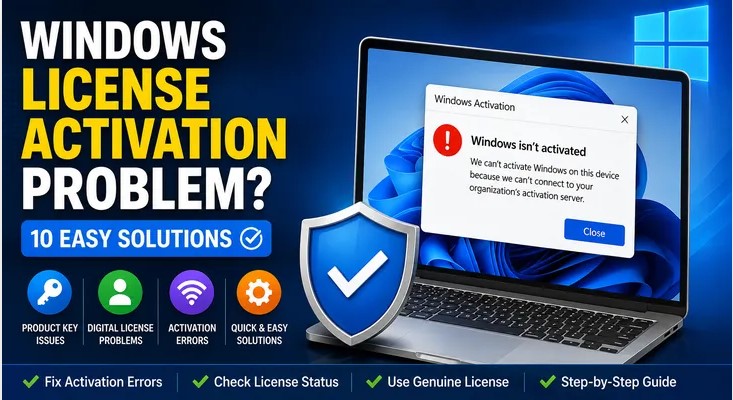
A Windows license activation problem can appear when Windows cannot verify the license associated with your computer. You may see an activation warning, an error code, or a message asking you to activate Windows.
This can happen after reinstalling Windows, changing important hardware, entering an incorrect product key, or installing a Windows edition that doesn’t match your license.
Fortunately, you don’t always need to reinstall Windows to solve the problem. Several built-in Windows tools can help you identify and troubleshoot activation issues.
In this guide, we’ll cover 10 safe ways to troubleshoot a Windows license activation problem.
What Is a Windows License Activation Problem?
Windows activation is the process used to verify that your Windows installation has a valid license.
Depending on how you obtained Windows, activation may be associated with a digital license or a valid product key.
If Windows cannot verify the license, you may see an activation notification in Settings.
The first step is to determine exactly what Windows is reporting.
1. Check Your Windows Activation Status
Start by checking the activation page in Windows.
Go to:
Settings → System → Activation
You’ll see information about your current activation status.
If Windows isn’t activated, the page may also display an error message or provide troubleshooting options.
Write down any activation error code you see. It can help you determine which solution to try next.
2. Run the Activation Troubleshooter
Windows includes a built-in Activation Troubleshooter for certain activation problems.
To access it:
- Open Settings.
- Select System.
- Choose Activation.
- Look for Troubleshoot.
- Follow the instructions shown on screen.
The troubleshooter can be particularly useful when Windows was previously activated but activation stopped working after a change.
Microsoft provides additional information about using the Windows Activation Troubleshooter in its official support documentation.
3. Check Your Internet Connection
Windows needs an internet connection for online activation in supported scenarios.
A temporary connection problem can therefore interfere with activation.
Try the following:
- Check your Wi-Fi or Ethernet connection.
- Open a browser and test another website.
- Restart your router if necessary.
- Disconnect and reconnect to your network.
- Return to Windows Activation and try again.
If your internet connection is working normally, continue to the next solution.
4. Make Sure the Windows Edition Is Correct
Your license must correspond to the Windows edition you’re trying to activate.
For example, a license associated with Windows Home may not activate an installation of Windows Pro.
To check your edition:
Settings → System → Activation
Look at the Windows edition installed on your computer.
If the edition doesn’t match your license, you may need to use the correct edition associated with your genuine license.
This is an important step because repeatedly entering the same product key won’t solve an edition mismatch.
5. Verify Your Product Key
If you’re using a product key, make sure you’ve entered it correctly.
A product key should:
- Belong to a legitimate Windows license
- Match your Windows edition
- Be entered correctly
- Not be intended for another device or edition
Avoid purchasing extremely cheap keys from unknown websites or using unauthorized key generators.
If your license was purchased from Microsoft or an authorized seller, use the original purchase information to verify the key.
Learn more: How to Activate Windows 10 Safely and Legally
6. Sign In to the Correct Microsoft Account
A digital license can be associated with a Microsoft account.
If you’ve reinstalled Windows or changed hardware, signing in with the Microsoft account associated with your license may help Windows recognize the digital entitlement.
Go to:
Settings → Accounts
Check which Microsoft account is currently signed in.
If you previously linked your digital license to another Microsoft account, make sure you’re using the appropriate account.
Learn more: Windows 11 Activation Problems: How to Fix Common Errors
7. Check for Windows Updates
Sometimes activation problems occur alongside other Windows installation or update issues.
To check for updates:
- Open Settings.
- Select Windows Update.
- Click Check for updates.
- Install available updates.
- Restart the computer.
After restarting, open:
Settings → System → Activation
and check the status again.
Keeping Windows updated can also help maintain compatibility with Microsoft’s current activation services.
8. Consider Recent Hardware Changes
Did the activation problem start after replacing a motherboard or making another significant hardware change?
A major hardware change can affect the relationship between a digital license and the device.
If Windows was activated before the hardware change, try the Activation Troubleshooter.
You may be given an option related to a recent hardware change. Follow the instructions provided by Windows.
Don’t assume that buying another license is immediately necessary. First determine whether your existing legitimate license can be re-associated with the device.
9. Check the Activation Error Code
Windows may display a specific error code when activation fails.
Don’t ignore this code.
For example, errors beginning with 0xC004 can provide useful information about the activation problem.
The exact meaning depends on the complete error code.
Write down the code and search Microsoft’s official documentation for that exact code.
This is much better than trying random registry modifications or unofficial activation tools.
10. Use Microsoft’s Official Activation Support
If you’ve tried the normal troubleshooting methods and Windows still won’t activate, use Microsoft’s official support documentation.
Learn more: Microsoft — Get help with Windows activation errors
The official documentation provides information about common activation errors and recommended troubleshooting steps.
Always prefer Microsoft’s official guidance when dealing with Windows licensing.
Common Causes of Windows License Activation Problems
A license activation issue can be caused by several things.
Incorrect Product Key
A mistyped or invalid key won’t activate Windows.
Edition Mismatch
Your license and installed Windows edition may be different.
Hardware Changes
A major hardware change can affect digital license recognition.
Reinstallation
After reinstalling Windows, the device may need to reconnect with its digital license.
Internet Problems
Activation may fail if Windows cannot communicate with Microsoft’s activation services.
Licensing Issues
A license may have already been used in a way that doesn’t meet its licensing terms.
Should You Use a Windows Activator?
No.
Don’t use Windows cracks, key generators, unauthorized activators, or modified activation scripts to bypass licensing.
Apart from violating Microsoft’s licensing terms, unofficial activation tools can expose your computer to malware or unwanted software.
If you have a legitimate Windows license, troubleshoot the activation problem instead.
What If Windows Was Activated Before?
If Windows was previously activated on the same computer, don’t immediately purchase another license.
First check:
- Activation status
- Windows edition
- Microsoft account
- Recent hardware changes
- Activation error code
- Windows updates
- Activation Troubleshooter
These checks can help identify why the previous activation is no longer being recognized.
Frequently Asked Questions
Why is Windows saying it isn’t activated?
Windows may show this message when it cannot verify a valid license. The cause could be an edition mismatch, hardware change, product key issue, or another activation problem.
How do I fix a Windows license activation problem?
Start by checking Settings → System → Activation. Then verify your Windows edition, internet connection, product key or digital license, Microsoft account, and any displayed error code.
Can a hardware change cause activation problems?
Yes. Significant hardware changes can affect digital license recognition, particularly when the license was associated with the previous hardware configuration.
Do I need to buy Windows again?
Not necessarily. If you already have a legitimate license, first troubleshoot the existing activation using Windows’ built-in tools and Microsoft’s official guidance.
Can I activate Windows with a free key?
You should use only a legitimate product key or digital license. Avoid unauthorized keys, cracks, and activation bypass tools.
What should I do if my Windows product key doesn’t work?
Confirm that the key is correct and matches your installed Windows edition. If it still doesn’t work, check the exact activation error code and consult Microsoft’s official support documentation.
Can reinstalling Windows fix activation?
Reinstalling Windows isn’t automatically the solution. If the underlying problem is a license, edition, or hardware-association issue, reinstalling Windows may not resolve it.
Final Thoughts
A Windows license activation problem can often be investigated without reinstalling Windows or using unofficial activation software.
Start by checking your activation status and running the built-in Activation Troubleshooter. Then verify your Windows edition, internet connection, product key or digital license, Microsoft account, and any recent hardware changes.
If Windows provides an error code, use that code to identify the appropriate solution.
Most importantly, stick with legitimate Windows licensing and official troubleshooting methods. This keeps your computer safer and avoids creating additional problems while trying to fix activation.









