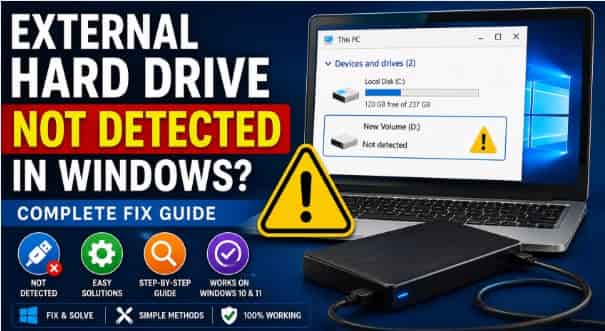
Plugging in an external hard drive to back up important files or access media, only to find it completely missing from File Explorer, can cause immediate panic. Whether the drive is spinning but not showing up, or completely silent, learning how to fix external hard drive not showing in Windows can help you recover your connection and data safely.
In this step-by-step troubleshooting guide, we will walk you through the most effective methods to diagnose and resolve external drive recognition issues on your Windows PC.
Table of Contents
Why Is Your External Hard Drive Not Showing Up?
Before applying fixes, it helps to understand the common causes behind this hardware glitch:
Missing or Unassigned Drive Letter: Windows recognizes the drive but hasn’t assigned a letter to it.
Outdated or Corrupt USB/Disk Drivers: Flawed communication between the operating system and the hardware controller.
File System Incompatibility or Corruption: The drive might be formatted incorrectly (e.g., APFS or unsupported partitions) or corrupted.
Insufficient Power Supply: The USB port isn’t delivering enough power to spin up the external drive.
How to Fix External Hard Drive Not Showing in Windows: 5 Easy Methods
Method 1: Try a Different USB Port or Cable
Hardware connection issues are often the easiest to rule out:
Disconnect your external hard drive from its current port.
Plug it directly into a rear USB port (if you are using a desktop PC, as front ports sometimes lack adequate power).
Try using a different USB cable if you have a spare one available.
Avoid using unpowered USB hubs for large external hard drives.
If you’re also experiencing other Windows 11 Activation Problems, check our guide on windows-10-optimization-for-gaming
Method 2: Assign or Change the Drive Letter in Disk Management
If Windows detects the physical drive but doesn’t show it in File Explorer, it usually lacks a drive letter:
Right-click the Start button and select Disk Management.
Look for your external hard drive in the lower section of the window.
Right-click the partition of your external drive and select Change Drive Letter and Paths…
Click Change, pick an available letter from the drop-down menu, and click OK.
Method 3: Update or Reinstall Disk Drivers
Corrupted drivers frequently block external storage recognition:
Press
Win + Xand select Device Manager.Expand the Disk drives section.
Right-click your external hard drive and select Update driver.
If that fails, right-click it, select Uninstall device, and restart your computer. Windows will automatically reinstall a fresh driver upon reboot.
Method 4: Run the Hardware and Devices Troubleshooter
Windows includes built-in troubleshooting tools to detect hardware configuration errors:
Press
Win + R, typecmd, and open Command Prompt as administrator.Type the following command and press Enter:
msdt.exe -id DeviceDiagnosticFollow the on-screen instructions to let Windows scan and fix storage anomalies automatically.
- If you’re also experiencing other Windows 11 Activation Problems, check our guide on How to Fix USB Not Recognized Error in Windows.
Method 5: Format the Drive (If It Shows as Unallocated or RAW)
Warning: This method will erase all data on the drive. Use only if data recovery is not required.
Open Disk Management (as shown in Method 2).
If your drive shows as Unallocated, right-click it and select New Simple Volume.
Follow the wizard steps to assign a drive letter and format it with the NTFS file system.
Frequently Asked Questions (FAQs)
Q: Will assigning a new drive letter erase my data?
A: No, changing or assigning a drive letter only changes how Windows accesses the partition; it does not delete or alter any files stored on the drive.
Q: Why does my external hard drive click or beep when plugged in?
A: A clicking or ticking sound usually indicates mechanical failure or insufficient power supply (common with older portable HDDs needing a Y-cable).
Conclusion
Encountering storage detection issues can be daunting, but knowing how to fix external hard drive not showing in Windows empowers you to troubleshoot efficiently. By changing drive letters, updating drivers, or switching ports, you can bring your drive back to life. For additional technical support, visit Microsoft Support.









