

If you want to fix windows 11 micro stuttering in games, experiencing random frame drops, sudden lag spikes, and hitching despite having high FPS hardware can completely ruin your gameplay. If you have been searching for an effective method to fix windows 11 micro stuttering in games, you are in the right place. This frustrating gaming performance issue typically occurs due to unoptimized GPU power settings, background Xbox Game Bar overlays, fTPM micro-code stutter, or aggressive variable refresh rate conflicts.
In this comprehensive guide, we will walk you through the top troubleshooting steps to eliminate game stuttering and restore ultra-smooth frame delivery on Windows 11.
Table of Contents
What Causes Micro Stuttering in Games on Windows 11?
Before applying the fixes, understanding why this happens helps:
Background Game Overlays: Recording tools and monitoring software creating frame-pacing bottlenecks in full screen modes.
Aggressive Hardware Power Savings: GPU and CPU states constantly downclocking during light scene rendering.
Windows Game Mode Conflicts: Automated background resource allocation mismanaging CPU core assignments.
Top Methods to Fix Windows 11 Micro Stuttering in Games
Method 1: Enable Hardware-Accelerated GPU Scheduling (HAGS)
Optimizing how your graphics card manages its VRAM memory scheduling reduces frame delivery latency:
Press
Win + Ito open Settings, then go to System > Display > Graphics.Click Change default graphics settings.
Toggle the switch for Hardware-accelerated GPU scheduling to On and restart your PC.
Verification: Launch your game and monitor your frame time graph to confirm frame delivery variance has smoothed out.
if you’re also experiencing other Windows 10 & 11 Best Ways: Fix Windows 11 High CPU Usage System Interrupts
Method 2: Disable Xbox Game Bar Background Recording
Preventing Windows from continuously capturing gameplay buffers frees up vital CPU cycles:
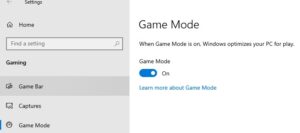
Open Settings (
Win + I) and click on Gaming in the left sidebar.Select Captures and turn off Record what happened (Background recording).
Return to Gaming, select Game Mode, and ensure Game Mode is toggled On.
Verification: Run a game benchmark to verify that sudden 1% low FPS drops no longer trigger during intense gameplay.
Method 3: Change GPU Power Management to Maximum Performance
Preventing your graphics card from reducing clock speeds during scene transitions stops micro-freezes:
Right-click your desktop and open NVIDIA Control Panel (or AMD Radeon Software).
Navigate to Manage 3D Settings > Global Settings.
Scroll to Power management mode and set it to Prefer maximum performance. Click Apply.
Verification: Check in-game performance metrics to ensure your GPU clock speed remains stable across heavy and light gameplay scenes.
Frequently Asked Questions (FAQs)
Q: Why does my game stutter even with high average FPS?
A: Stuttering is caused by inconsistent frame times (1% and 0.1% low FPS drops) rather than low average FPS. Even if your game runs at 120 FPS, a sudden drop to 30 FPS for a split second causes noticeable micro-hitching.
Q: Does disabling fTPM fix stuttering in Windows 11?
A: On certain AMD Ryzen systems, older BIOS versions had an fTPM bug causing memory stutter. Updating your motherboard BIOS to the latest version fixes this issue completely.
Conclusion
Keeping your system gaming pipeline optimized ensures an enjoyable, responsive, and lag-free gaming experience. By mastering these techniques to fix windows 11 micro stuttering in games, you can eliminate frame time spikes and achieve flawless graphics performance.
Important Note:
Always keep your graphics card drivers updated directly from NVIDIA, AMD, or Intel official portals.
Final Thoughts on Gaming Performance and System Optimization
To wrap it up, maintaining a fully optimized operating system environment is crucial for maximum gaming responsiveness and hardware efficiency. By proactively managing power profiles and removing background recording overhead, you protect your setup against unexpected stuttering and maintain peak digital performance. Always keep regular backups of your important configuration files before executing deep system modifications. Staying proactive with modern diagnostic tools guarantees long-term digital stability and peace of mind.