

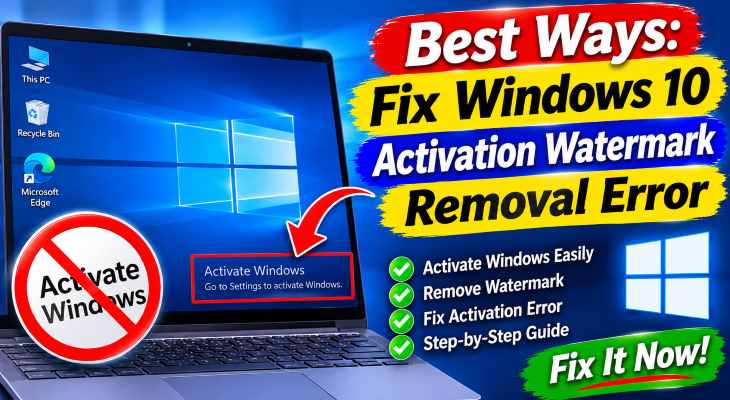
If you need to fix windows 10 activation water mark removal error, dealing with the persistent “Activate Windows” overlay stuck in the bottom-right corner of your screen—even after entering a valid license or applying standard settings—can be extremely distracting. If you have been searching for a reliable method to fix windows 10 activation water mark removal error, you are in the right place. This frustrating display notice typically occurs due to unverified digital license synchronization, hung Windows Explorer shell states, corrupted Software Protection service tokens, or misconfigured registry values after a major system update.
In this comprehensive guide, we will walk you through the top legitimate troubleshooting steps to refresh your license validation and clear the stubborn desktop watermark on Windows 10.
Table of Contents
What Causes Windows 10 Activation Watermark Removal Errors?
Before applying the fixes, understanding why this happens helps:
Unsynchronized Digital License Status: Windows failing to re-verify your motherboard’s hardware ID with Microsoft’s activation servers after a BIOS update or hardware swap.
Hung Windows Explorer UI Cache: The
explorer.exedesktop shell continuing to render the cached watermark overlay even after activation succeeds in Settings.Glitched Software Protection Service (
sppsvc): The background Windows licensing service stalling or failing to refresh local activation tokens.
Top Methods to Apply Fix Windows 10 Activation Water Mark Removal Error
Method 1: Run the Windows Activation Troubleshooter and Re-Sync License
Forcing Windows 10 to re-validate your linked Microsoft account digital license is the safest way to fix windows 10 activation water mark removal error:
Press
Win + Ito open Settings, then navigate to Update & Security > Activation.Click the Troubleshoot link beneath the activation status message.
If you recently upgraded hardware, select “I changed hardware on this device recently”, sign in to your linked Microsoft account, select your current PC, and click Activate.
Verification: Confirm that the Activation status changes to “Windows is activated with a digital license” and check the bottom-right corner of your desktop.
Af you,re also experiencing other windows 10 & 11 Windows 10 Enterprise Activation Key Not Working Fix
Method 2: Restart Windows Explorer and Software Protection Service
Refreshing both the licensing engine and the desktop shell clears lingering watermark overlays when Windows is already activated:
Press
Win + S, typecmd, right-click Command Prompt, and select Run as administrator.Type
net stop sppsvcand press Enter, then typenet start sppsvcand press Enter to restart the Software Protection service.Next, run
slmgr /atoto force a fresh online license check.Finally, press
Ctrl + Shift + Escto open Task Manager, locate Windows Explorer, right-click it, and select Restart.Verification: Once the taskbar reloads, inspect the bottom-right corner over a dark wallpaper to confirm the watermark is completely gone.
Method 3: Refresh Display Paint Desktop Version Registry Value
Resetting the desktop version display flag ensures Windows does not erroneously draw build or activation text on the wallpaper:
Press
Win + R, typeregedit, and press Enter to open the Registry Editor.Navigate to the following path:
HKEY_CURRENT_USER\Control Panel\DesktopIn the right-hand pane, locate the DWORD value named PaintDesktopVersion.
Double-click PaintDesktopVersion, ensure its Value data is set to
0, and click OK.Restart your computer to apply the registry refresh.
Verification: Log back into your desktop and verify that the bottom-right screen corner remains clean across reboots.
Frequently Asked Questions (FAQs)
Q: Why does the “Activate Windows” watermark remain even though Settings says Windows is activated?
A: This happens when explorer.exe caches the unactivated desktop state prior to a background license sync. Restarting Windows Explorer via Task Manager or rebooting your PC clears the leftover overlay immediately.
Q: Does having the Windows 10 activation watermark stop security updates?
A: Windows 10 still receives critical security updates while unactivated, though personalization settings (like changing wallpapers, accent colors, and lock screen themes) remain locked until a valid product key or digital license is applied.
Conclusion
Keeping your system’s licensing service synchronized and desktop shell refreshed ensures a clean, distraction-free workspace. By mastering these techniques to fix windows 10 activation water mark removal error, you can eliminate stubborn screen overlays and restore full personalization access.
Important Note:
Always ensure your PC has an active internet connection and matches the exact Windows edition (Home, Pro, or Enterprise) tied to your product key before running
slmgr /ato.
Final Thoughts on Licensing Validation and System Health
To wrap it up, maintaining active Software Protection services and verified digital licenses is essential for uninterrupted Windows 10 performance. By proactively running the built-in Activation Troubleshooter and refreshing Explorer caches, you get a dependable solution to fix windows 10 activation water mark removal error and enjoy smooth daily operation. Always keep regular system backups before editing Windows Registry keys. Staying proactive with modern diagnostic tools guarantees long-term PC stability and peace of mind.