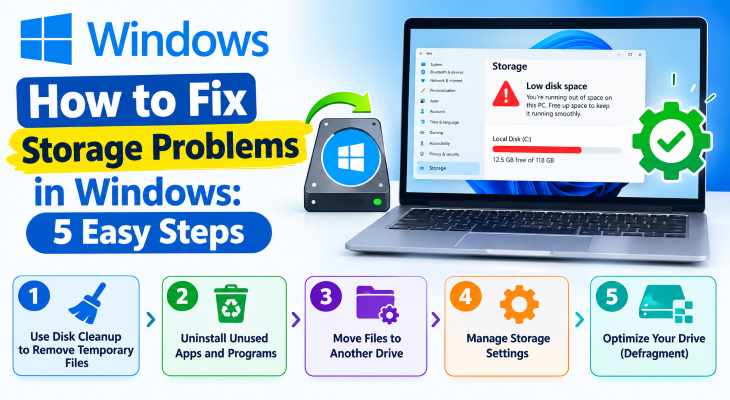
Running out of disk space can suddenly slow down your system, block critical Windows updates, and prevent you from installing new apps or games. When your storage drives are completely maxed out, learning how to fix storage problems in Windows is essential to reclaim gigabytes of free space and restore computer performance.
In this step-by-step troubleshooting guide, we will walk you through the most effective methods to diagnose and resolve storage clutter on your Windows PC.
Table of Contents
Why Does Windows Run Out of Storage So Fast?
Before jumping into the solutions, understanding what fills up your hard drive helps:
Accumulated Temporary Files: Hidden cache files left behind by web browsers, apps, and previous OS updates.
Full Recycle Bin: Files that were “deleted” but continue to occupy physical storage space until permanently emptied.
Unused Heavy Apps & Bloatware: Old games and large software packages taking up massive chunks of drive capacity.
System Restore Points: Saved backup snapshots consuming background partition space.
How to Fix Storage Problems in Windows: 5 Easy Methods
Method 1: Enable and Configure Storage Sense
Windows has a built-in automated tool to wipe temporary files:
Press Windows Key + I to open Settings.
Go to System > Storage.
Toggle the Storage Sense switch to On.
Click on Configure Storage Sense or run it now to customize how often Windows automatically deletes temporary files and empties your Recycle Bin.I
f you’re also experiencing other Windows 11 Activation Problems, check our guide on How to Fix High Disk Usage in Windows 10
Method 2: Run the Disk Cleanup Utility
An old-school yet powerful tool to remove leftover system junk:
Open the Start menu, type Disk Cleanup, and press Enter.
Select your main drive (usually
C:) and click OK.Click on the Clean up system files button to scan deeper. If you’re also experiencing other Windows 11 Activation Problems, check our guide on how to speed up windows 10 for gaming.
Check all the boxes for temporary installation files, Windows update leftovers, and thumbnail cache, then click OK to delete them.
Method 3: Empty the Recycle Bin and Temporary Folders
Many users forget that deleted files remain stored on the drive:
Double-click the Recycle Bin icon on your desktop, review the contents, and click Empty Recycle Bin.
Press
Win + R, type%temp%, and hit Enter. Select all files inside the folder (Ctrl + A) and delete them permanently (Shift + Delete).
Method 4: Uninstall Unused Apps and Large Games
Heavy software packages are usually the biggest storage hogs:
Open Settings (Win + I) > Apps > Apps & features.
Sort the list by Size to see which programs consume the most gigabytes.
Click on any heavy apps or games you no longer use and select Uninstall.
Method 5: Move Files to an External Drive or Cloud
Offloading personal media files instantly relieves local partition pressure:
Connect an external hard drive or USB flash drive to your PC.
Transfer large personal folders (such as Movies, Music, and high-resolution Photos) from your
C:drive to the external storage or a cloud service like OneDrive.
Frequently Asked Questions (FAQs)
Q: What is the best way to see what is taking up my storage space?
A: You can go to Settings > System > Storage to get a detailed breakdown of how much space apps, temporary files, documents, and system files are consuming.
Q: Is it safe to delete everything inside the %temp% folder?
A: Yes, it is completely safe. Windows and active apps only store temporary cache files there; your personal documents and settings will not be affected..
Conclusion
Running low on drive capacity can cripple your daily workflow, but knowing how to fix storage problems in Windows gives you total control over your system space. By enabling Storage Sense, running disk cleanup, and uninstalling heavy bloatware, your PC will have plenty of breathing room again. For additional support, visit Microsoft Support.









