

If you want to fix windows 11 high cpu usage system interrupts, encountering sudden system slowdowns, fans spinning at maximum speed, or Task Manager showing heavy resource consumption by System Interrupts can severely disrupt your daily workflow. If you have been searching for an effective method to fix windows 11 high cpu usage system interrupts, you are in the right place. This frustrating performance issue typically occurs due to outdated hardware drivers, misconfigured USB controllers, failing external peripherals, or aggressive fast startup power configurations.
In this comprehensive guide, we will walk you through the top troubleshooting steps to resolve high CPU utilization and restore fast processing speeds on Windows 11.
Table of Contents
What Causes System Interrupts High CPU Usage in Windows 11?
Before applying the fixes, understanding why this happens helps:
Faulty Device Drivers: Corrupted or outdated drivers constantly sending conflicting hardware interrupt signals (IRQs) to the processor.
Malfunctioning USB Peripherals: Loose, damaged, or power-starved external USB devices triggering continuous processor requests.
Corrupted Fast Startup Cache: Windows quick-boot feature loading damaged hardware state files into RAM during boot up.
Top Methods to Fix Windows 11 High CPU Usage System Interrupts
Method 1: Update or Roll Back Network and Sound Drivers
Network card and audio drivers are the primary triggers for hardware interrupt conflicts:
Right-click the Start button and select Device Manager.
Expand Network adapters and Sound, video and game controllers.
Right-click your network card (or audio controller), select Update driver, and choose Search automatically for drivers.
Verification: Open Task Manager (
Ctrl + Shift + Esc) and confirm that the System Interrupts process CPU percentage drops back to 0.1%–1%.if you’re also experiencing other Windows 10 & 11 Best Ways: Windows 11 Update Installation Error Fix
Method 2: Turn Off Windows Fast Startu
Preventing Windows from saving bad hardware states during shutdown resolves persistent interrupt loops:
Press
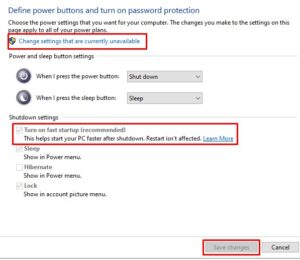
Win + R, typepowercfg.cpl, and press Enter to open Power Options.Click Choose what the power buttons do in the left panel.
Click Change settings that are currently unavailable, uncheck Turn on fast startup (recommended), and click Save changes.
Verification: Reboot your PC and monitor CPU utilization to verify baseline stability.
Method 3: Disable USB Root Hubs Power Throttling
Ensuring USB controllers receive consistent motherboard power prevents hardware request timeouts:
Open Device Manager and expand the Universal Serial Bus controllers category.
Right-click each USB Root Hub, select Properties, and switch to the Power Management tab.
Uncheck “Allow the computer to turn off this device to save power” and click OK.
Verification: Check Task Manager performance graphs to ensure CPU usage remains cool and low during idle periods.
Frequently Asked Questions (FAQs)
Q: Is System Interrupts a virus or malware?
A: No, System Interrupts is a legitimate official Windows system component that acts as a communication bridge between your hardware components and the processor.
Q: What is normal CPU usage for System Interrupts?
A: Under normal conditions, System Interrupts should consume between 0.1% and 1% of your CPU power. Anything consistently above 5% indicates a driver or hardware conflict.
Conclusion
Keeping your system hardware communication optimized ensures a snappy, lag-free daily computing experience. By mastering these techniques to fix windows 11 high cpu usage system interrupts, you can eliminate resource bottlenecks and enjoy maximum PC speed.
Important Note:
Always back up critical personal files to external storage before updating core system drivers or modifying power settings.
Final Thoughts on Hardware Interrupts and System Performance
To wrap it up, maintaining a fully updated driver stack and clean power profile is crucial for seamless daily operations and long-term hardware health. By proactively managing USB root power states and disabling corrupted fast boot caches, you protect your setup against unexpected performance drops and maintain maximum digital efficiency. Always keep regular backups of your important configuration files before executing deep system modifications. Staying proactive with modern diagnostic tools guarantees long-term digital stability and peace of mind.