

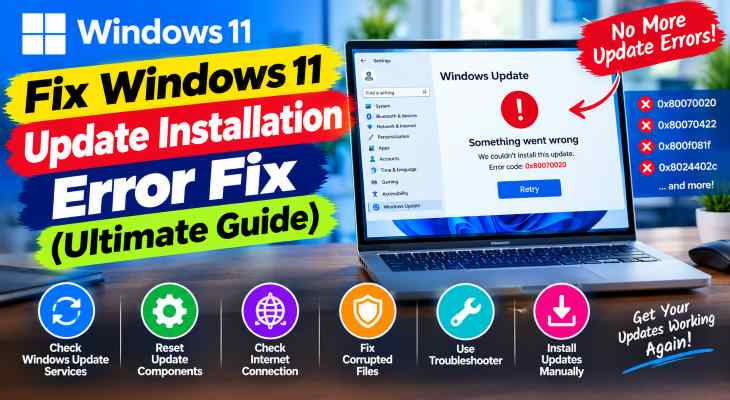
If you want to windows 11 update installation error fix, encountering sudden failed updates, stuck download percentages, or frustrating error codes can leave your operating system vulnerable and out of date. If you have been searching for an effective method to windows 11 update installation error fix, you are in the right place. This frustrating update failure typically occurs due to corrupted software distribution folders, conflicting background update services, or broken system cache files.
In this comprehensive guide, we will walk you through the top troubleshooting steps to resolve installation errors and successfully update your Windows 11 system.
Table of Contents
What Causes Windows 11 Update Installation Errors?
Before applying the fixes, understanding why this happens helps:
Corrupted SoftwareDistribution Files: Damaged downloaded update packages stored locally on your hard drive blocking fresh installation.
Stuck Windows Update Services: Background core modules (
wuauserv,cryptsvc,bits) hanging or failing to respond.Corrupted System File Integrity: Missing operating system binaries preventing security patches from applying correctly.
Top Methods to Apply Windows 11 Update Installation Error Fix
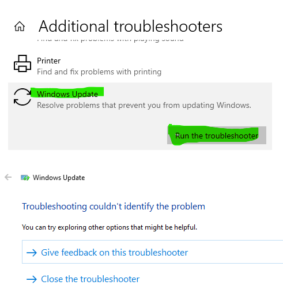
Method 1: Run the Built-In Windows Update Troubleshooter
Letting the automated diagnostic tool scan and repair core update parameters:
Press
Win + Ito open Windows Settings.Go to System > Troubleshoot > Other troubleshooters.
Locate Windows Update and click the Run button next to it.
Verification: Follow the on-screen prompts and check if the tool successfully detects and fixes pending service errors.
Method 2: Clear the SoftwareDistribution and Catroot2 Folders
Deleting corrupted update cache files forces Windows to download a fresh, uncorrupted copy:
Press
Win + S, typecmd, right-click Command Prompt, and select Run as administrator.Stop the update services by typing the following commands one by one and pressing Enter:
net stop wuauservnet stop cryptsvcnet stop bitsnet stop msiserverOpen File Explorer, navigate to
C:\Windows\SoftwareDistribution, and delete all files and folders inside it.Return to Command Prompt and restart the services by typing:
net start wuauservnet start cryptsvcnet start bitsnet start msiserverVerification: Reopen Windows Update in Settings and try checking for updates again to confirm the download starts smoothly.
Method 3: Repair System Files via DISM and SFC Scans
Restoring missing or damaged operating system files removes underlying update blocks:
Open Command Prompt as administrator.
Type
DISM.exe /Online /Cleanup-image /Restorehealthand press Enter. Once complete, typesfc /scannowand press Enter.Verification: The verification scan will report successful repair of corrupted files, enabling smooth patch installations.
if you’re also experiencing other Windows 10 & 11 Best Ways: Fix Windows 11 Right Click Context Menu Lag
Frequently Asked Questions (FAQs)
Q: Why do Windows 11 updates get stuck at 99%?
A: Updates often appear stuck at 99% while background tasks configure system components, migrate registry keys, or clean up temporary installation files.
Q: Will resetting update components delete my personal files?
A: No, clearing the Software Distribution folder or resetting update services only removes downloaded update cache files and will not affect your personal documents or apps.
Conclusion
Keeping your operating system updated ensures optimal security, bug fixes, and feature enhancements. By mastering these techniques to windows 11 update installation error fix, you can overcome failed updates and maintain complete system health.
Important Note:
Always maintain a stable internet connection and ensure your PC remains plugged into power during major Windows update installations.
Final Thoughts on System Upgrades and Update Management
To wrap it up, maintaining a fully functional and patched operating system environment is crucial for maximum cybersecurity and software compatibility. By proactively clearing update caches and repairing underlying system files, you protect your computer against unexpected installation failures and maintain peak digital performance. Always keep regular backups of your important configuration files before executing deep system modifications or registry edits. Staying proactive with modern diagnostic tools guarantees long-term digital efficiency and peace of mind.