

If you want to fix windows 11 internet speed slow wi fi 6, experiencing frustrating lag spikes, dropped packets, and sluggish wireless performance on a modern router can severely disrupt your browsing and downloads. If you have been searching for an effective method to fix windows 11 internet speed slow wifi 6, you are in the right place. This frustrating network slowdown typically occurs due to outdated wireless adapter drivers, misconfigured band steering settings, or aggressive power-saving schemes affecting your network card.
In this comprehensive guide, we will walk you through the top optimization steps to resolve slow speeds and maximize your Wi-Fi 6 performance on Windows 11.
Table of Contents
What Causes Wi-Fi 6 Slow Speeds in Windows 11?
Before applying the fixes, understanding why this happens helps:
Outdated Network Drivers: Incompatible Wi-Fi card firmware failing to communicate correctly with 802.11ax protocols.
Power Saving Restrictions: Windows throttling wireless adapter power to save battery, limiting maximum throughput.
Incorrect Channel Width: Router or adapter operating on narrow frequency bands instead of maximum 80/160MHz widths.
Top Methods to Fix Windows 11 Internet Speed Slow Wi-Fi 6
Method 1: Update or Reinstall Wireless Network Adapter Drivers
Refreshing your Wi-Fi adapter software restores full protocol compatibility:
Right-click the Start button and select Device Manager.
Expand the Network adapters category and locate your Wi-Fi 6 card (e.g., Intel Wi-Fi 6 AX200/AX210).
Right-click it, select Update driver, or choose Uninstall device and restart your computer to let Windows automatically reinstall a clean driver.
Verification: Run a speed test to check if your wireless throughput has returned to expected gigabit levels.
if you’re also experiencing other Windows 10 & 11 Best Ways: Windows 11 TPM 2.0 Bypass Error Fix (Ultimate Guide)
Method 2: Disable Power Saving Mode for Your Wi-Fi Adapter
Preventing Windows from cutting power to your network card maintains stable high-speed transmission:
Open Device Manager, expand Network adapters, right-click your Wi-Fi card, and choose Properties.
Navigate to the Power Management tab.
Uncheck the option that says “Allow the computer to turn off this device to save power” and click OK.
Verification: Monitor your connection stability during large file transfers to ensure speeds no longer drop randomly.
Method 3: Reset Network Stack and Flush DNS Cache
Clearing corrupted local network sockets removes performance bottlenecks:
Press
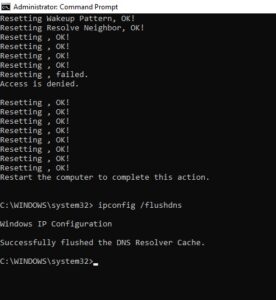
Win + S, typecmd, right-click Command Prompt, and select Run as administrator.Type
netsh winsock resetand press Enter.Type
netsh int ip resetand press Enter, then typeipconfig /flushdnsand press Enter. Restart your PC.Verification: Open your browser and confirm that page load latencies and download speeds are fully restored.
Frequently Asked Questions (FAQs)
Q: Why is my Wi-Fi 6 slower than Ethernet on Windows 11?
A: Wi-Fi speeds can be impacted by physical obstacles, distance from the router, signal interference, or incorrect band switching between 2.4GHz and 5.7GHz frequencies.
Q: Should I enable 160MHz channel width for Wi-Fi 6?
A: Yes, enabling 160MHz channel width in your adapter’s advanced properties can significantly boost maximum wireless data transfer speeds if your router supports it.
Conclusion
Keeping your wireless connection fully optimized ensures a fast, lag-free online experience. By mastering these techniques to fix windows 11 internet speed slow wifi 6, you can eliminate network bottlenecks and enjoy maximum internet speeds.
Important Note:
Always download the latest wireless drivers directly from Intel, Realtek, or your laptop manufacturer’s official support portal.
Final Thoughts on Network Optimization and Wi-Fi Performance
To wrap it up, maintaining a fully tuned networking environment is crucial for seamless daily productivity and media streaming. By proactively updating adapter firmware and disabling aggressive power management states, you protect your connection against unexpected slowdowns and maintain peak digital performance. Always keep regular backups of your important configuration files before executing deep system modifications or registry edits. Staying proactive with modern diagnostic tools guarantees long-term digital efficiency and peace of mind.