

If you want to fix windows 11 fingerprint scanner not working, encountering a sudden biometric sign-in failure or unresponsive sensor when trying to log into your laptop can severely disrupt your daily convenience. If you have been searching for an effective method to fix windows 11 fingerprint scanner not working, you are in the right place. This frustrating hardware issue typically occurs due to outdated biometric device drivers, corrupted Windows Hello enrollment data, or disabled Windows Credential Manager services.
In this comprehensive guide, we will walk you through the top troubleshooting steps to resolve the fingerprint sensor error on your Windows 11 computer and restore seamless biometric authentication.
Table of Contents
What Causes Windows 11 Fingerprint Scanner Issues?
Before applying the fixes, understanding why this happens helps:
Outdated Biometric Drivers: Missing or incompatible sensor software preventing hardware communication with Windows Hello.
Corrupted Windows Hello Database: Broken biometric credential files stored within the secure system directories.
Stopped Background Services: Disabled Windows Biometric Service blocking fingerprint authentication processes.
Top Methods to Fix Windows 11 Fingerprint Scanner Not Working
Method 1: Update or Reinstall Biometric Drivers
Refreshing your fingerprint reader driver through Device Manager resolves most hardware conflicts:
Right-click the Start button and select Device Manager.
Expand the Biometric devices category (or look under Human Interface Devices).
Right-click your fingerprint sensor (e.g., Goodix, Synaptics, or Elan) and select Update driver.
If that fails, right-click it, select Uninstall device, and restart your PC to let Windows reinstall it automatically.
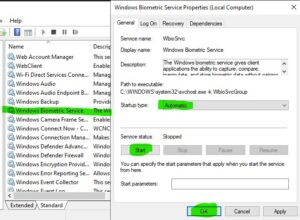
Method 2: Restart the Windows Biometric Service
Ensuring underlying authentication services are running properly restores login functionality:
Press
Win + R, typeservices.msc, and press Enter.Scroll down and locate Windows Biometric Service.
Right-click it, select Restart (or Start if it was stopped), and set its Startup type to Automatic.
Method 3: Reset Windows Hello Fingerprint Credentials
Clearing old biometric data and setting up a fresh fingerprint profile fixes authentication loops:
Open Windows Settings (press
Win + I).Navigate to Accounts > Sign-in options.
Expand Fingerprint recognition (Windows Hello) and click Remove to delete existing fingerprints.
Click Set up and follow the on-screen prompts to re-register your fingerprint securely.
If you’re also experiencing other Windows 10 & 11 Best Ways: Windows 11 Widgets Panel Not Loading Fix
Frequently Asked Questions (FAQs)
Q: Why did my Windows Hello fingerprint stop working suddenly after an update?
A: Major Windows system updates often overwrite proprietary manufacturer drivers with generic versions, which can temporarily disable specialized hardware like fingerprint sensors.
Q: What should I do if the fingerprint option is completely missing from sign-in options?
A: If the option is missing, it usually means your biometric driver is disabled in Device Manager or your BIOS/UEFI security settings have turned off biometric support.
Conclusion
Keeping your biometric sign-in options active ensures quick and secure access to your personal computer. By mastering these techniques to fix windows 11 fingerprint scanner not working, you can resolve driver glitches and keep your login process smooth and efficient.
Important Note:
Always download official biometric and chipset drivers directly from your laptop manufacturer’s support website rather than relying solely on generic updates.
Final Thoughts on Hardware Security and Biometric Access
To wrap it up, maintaining a fully functional and optimized biometric ecosystem is crucial for seamless daily operations and hardware security. By proactively managing device drivers and resetting Windows Hello credentials, you protect your workflow against unexpected authentication blocks and maintain maximum digital efficiency. Always keep regular backups of your important configuration files before executing deep system modifications or registry edits. Staying proactive with modern diagnostic tools guarantees long-term digital efficiency and peace of mind.