

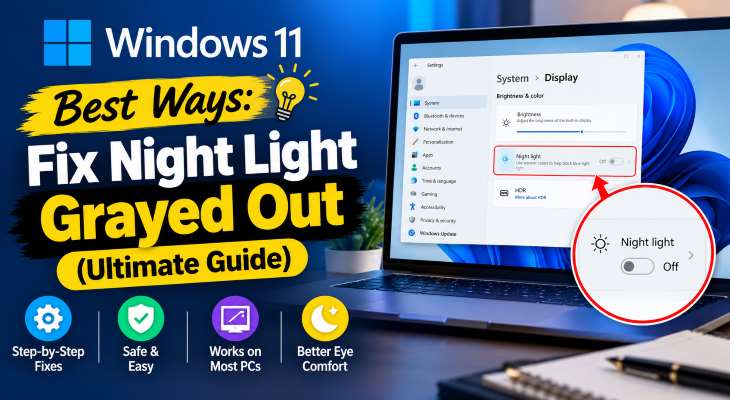
If you want to fix windows 11 night light grayed out, encountering a sudden display setting lock where blue light reduction toggles become inaccessible can severely strain your eyes during late-night work sessions. This frustrating display issue typically occurs due to missing or generic graphics display drivers, misconfigured Windows registry display parameters, or corrupted graphics adapter cache settings.
When Windows locks your display temperature settings, it usually means your operating system is struggling to communicate with your graphics adapter or color profile. But don’t worry—you don’t need to be a tech wizard to fix it. In this quick and easy guide, we will walk you through the most effective step-by-step methods to fix windows 11 night light grayed out and restore your display controls in just a few minutes.
Why is Night Light Grayed Out in Windows 11?
Before jumping into the solutions, let’s look at the primary culprits:
Outdated or Corrupted Graphics Drivers: The most frequent cause. If Windows is running on a generic Microsoft display driver, color controls often get disabled.
Incorrect Color Profile Settings: A custom or misconfigured ICC color profile can block color temperature adjustments.
Pending Windows Updates: System bugs or glitches in Windows 11 can temporarily disable display settings. If you are looking for a reliable way to fix windows 11 night light grayed out, updating your display adapters is the most effective step.
Step-by-Step Troubleshooting Methods
Outdated or missing display drivers are the number one reason Night Light locks up.
Press
Win + Xon your keyboard and select Device Manager.Click to expand the Display adapters category.
Right-click on your graphics driver (e.g., Intel UHD Graphics, AMD Radeon, or NVIDIA) and select Update driver.
Choose Search automatically for drivers.
If that doesn’t work, right-click the driver, select Uninstall device, check the box to attempt driver removal if prompted, and restart your PC. Windows will automatically reinstall a fresh copy upon reboot.
If you’re also experiencing other Windows 10 & 11 Best Ways: Windows 11 Virtualization-Based Security Error Fix
If the standard update doesn’t restore the toggle, you need a clean installation from the manufacturer.
Download the latest official driver installer from Intel, AMD, or NVIDIA depending on your hardware.
Disconnect your internet connection temporarily to prevent Windows from auto-installing an old driver.
Run the installer package, follow the on-screen instructions, and restart your computer.
Reconnect to the internet once the system boots back up.
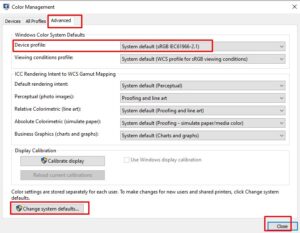
Sometimes, a custom color profile overrides Windows display settings, causing Night Light to gray out.
Press
Win + Rto open the Run dialog box, typecolorcpl, and hit Enter.In the Color Management window, go to the Advanced tab.
Look at the Device profile section. Ensure it is set to the default setting (
sRGB IEC61966-2.1). If it is set to something else, change it back to the default.Close the window and check if the Night Light toggle is now active.
Microsoft frequently pushes patches for display bugs in cumulative updates.
Press
Win + Ito open Settings.Click on Windows Update from the left-hand menu.
Click Check for updates and install any available system or driver updates.
Restart your PC to apply the changes.
Conclusion
Dealing with a locked display setting can be annoying, but learning how to fix windows 11 night light grayed out is usually straightforward once you target the root cause. By updating your graphics drivers, performing a clean installation, or resetting your ICC color profile, your display’s warm-color controls should be back up and running smoothly.
Now that your Night Light is working properly, you can enjoy comfortable, strain-free late-night computing sessions. If you found this guide helpful, make sure to check out our other Windows troubleshooting guides for more quick tech solutions! fix windows 11 night light grayed out.
FAQ (Frequently Asked Questions)
Q1: Why is my Night Light option grayed out in Windows 11?
Answer: The Night Light toggle is usually grayed out due to outdated, corrupted, or missing graphics drivers. When Windows is running on a generic Microsoft display driver, it often disables color temperature controls. Incorrect color management profiles or pending system bugs can also cause this issue.
Q2: How do I update my graphics driver to fix the Night Light issue?
Answer: Right-click the Start button, select Device Manager, and expand Display adapters. Right-click your graphics card (Intel, AMD, or NVIDIA), select Update driver, and choose “Search automatically for drivers.” If that fails, uninstall the device and restart your PC so Windows can reinstall a fresh copy.
Q3: Can a custom color profile cause Windows 11 Night Light to lock up?
Answer: Yes. If a custom ICC color profile overrides your system settings, it can block Night Light. You can fix this by pressing Win + R, typing colorcpl, going to the Advanced tab, and ensuring the Device profile is set to the default sRGB IEC61966-2.1.
Q4: Does turning on Windows 11 Battery Saver disable Night Light?
Answer: Yes, in some cases, enabling Battery Saver mode can temporarily restrict certain display adjustments like Night Light to conserve power. Try plugging in your laptop or turning off Battery Saver to see if the toggle becomes active.