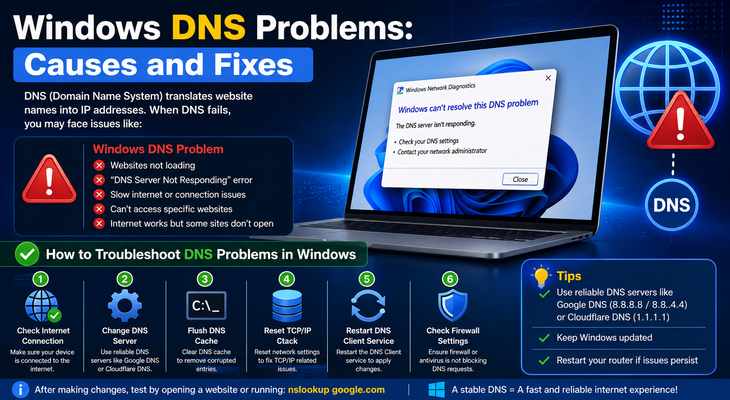
A reliable internet connection is essential for daily productivity, but encountering network errors can bring your work to a screeching halt. One of the most common culprits behind “No Internet Access” or “DNS Server Not Responding” errors is a faulty domain name system configuration. Knowing how to troubleshoot DNS problems in Windows can save you from endless frustration and get you back online in minutes.
In this comprehensive guide, we will walk you through the most effective and proven methods to diagnose and fix DNS issues on your Windows PC.
Table of Contents
What Causes Windows DNS Problems?
The Domain Name System (DNS) acts like the phonebook of the internet, translating website names into IP addresses. When this translation fails, you experience DNS errors. Common causes include:
Corrupted DNS Cache: Outdated or corrupted local DNS data stored on your PC.
Faulty Router Settings: Temporary glitches in your home router or modem.
ISP Outages: Issues originating from your Internet Service Provider.
Incorrect Network Configurations: Misconfigured IPv4 or IPv6 settings.
How to Troubleshoot DNS Problems in Windows: 5 Easy Methods
Method 1: Flush and Reset the DNS Cache
Clearing your corrupted local cache is the first and most effective step when learning how to troubleshoot DNS problems in Windows:
Open the Start menu, type
cmd, right-click Command Prompt, and select Run as administrator.Type the following command and press Enter:
ipconfig /flushdnsNext, type
ipconfig /registerdnsand press Enter.Then type
ipconfig /releaseand press Enter, followed byipconfig /renew.Restart your computer and check if your internet works.
Method 2: Change to a Public DNS Server
If your ISP’s default DNS servers are failing, switching to a fast, public DNS like Google or Cloudflare fixes the issue permanently:
Press
Win + R, typencpa.cpl, and hit Enter to open Network Connections.Right-click your active connection (Wi-Fi or Ethernet) and select Properties.
Double-click on Internet Protocol Version 4 (TCP/IPv4).
Select “Use the following DNS server addresses” and enter:
Preferred DNS server:
8.8.8.8(Google) or1.1.1.1(Cloudflare)Alternate DNS server:
8.8.4.4or1.0.0.1
Click OK to save changes.
Method 3: Restart the DNS Client Service
Sometimes the background Windows service handling DNS queries gets stuck:
Press
Win + R, typeservices.msc, and press Enter.Scroll down and locate DNS Client.
Right-click on it and select Restart (if the option is greyed out, it means Windows manages it automatically, which is fine).
- If you’re also experiencing other Windows 11 Activation Problems, check our guide on [related Windows 11 Activation problem].
Method 4: Reset TCP/IP Stack via Command Prompt
If network settings are deeply corrupted, resetting the TCP/IP stack will restore default parameters:
Open Command Prompt as administrator (as shown in Method 1).
Type
netsh int ip resetand press Enter.Type
netsh winsock resetand press Enter.Restart your computer to apply the network reset.
Method 5: Run the Built-in Network Troubleshooter
Windows comes with automated diagnostics to detect and fix common networking anomalies:
Go to Settings > Update & Security > Troubleshoot (or Settings > System > Troubleshoot depending on your Windows version).
Click on Additional troubleshooters.
Select Internet Connections and Network Adapter, then run the troubleshooters and follow the on-screen prompts.
Frequently Asked Questions (FAQs)
Q: Will changing my DNS server slow down my internet speed?
A: No, switching to reputable public DNS providers like Google or Cloudflare often improves website loading times and enhances overall connection reliability.
Q: What does “DNS Server Not Responding” mean?
A: This error means your web browser is trying to reach a website, but the DNS server responsible for translating the address is either down, unreachable, or misconfigured.
Conclusion
Mastering how to troubleshoot DNS problems in Windows ensures you can quickly tackle unexpected internet drops without calling technical support. By flushing your cache, updating your DNS servers, or resetting your network stack, you can maintain a fast and stable online experience. For additional support, visit Microsoft Support.









