

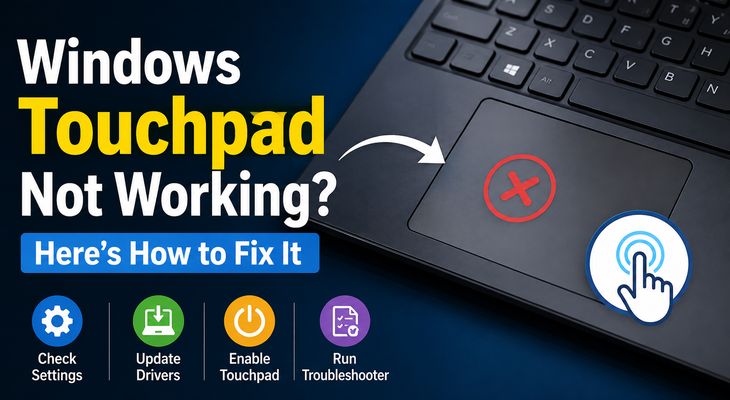
Finding out that your laptop touchpad is suddenly unresponsive can cause instant panic, especially if you don’t have a spare mouse handy. Whether the cursor is completely frozen or the gestures have stopped responding, learning how to fix touchpad not working on Windows laptop can save you from frustration and get you back in control.
In this step-by-step troubleshooting guide, we will walk you through the most effective methods to diagnose and resolve touchpad issues on your Windows machine.
Table of Contents
Why Does a Windows Touchpad Stop Working?
Before diving into the fixes, understanding the root causes can help you pinpoint the issue faster:
Accidental Disabling: The touchpad might have been disabled via a keyboard shortcut or system settings.
Corrupted or Outdated Drivers: Outdated system drivers failing to communicate with the hardware.
Windows Update Glitches: Recent updates occasionally conflict with precision touchpad drivers.
Hardware or Dirt Interference: Physical grime accumulation or a loose internal ribbon cable.
How to Fix Touchpad Not Working on Windows Laptop: 5 Easy Methods
Method 1: Enable the Touchpad Using a Shortcut or Settings
Often, the touchpad is simply turned off by accident:
Press your laptop’s designated function key shortcut (usually Fn + F3, F6, F7, or F9, depending on your brand like HP, Dell, or Lenovo).
Alternatively, press Windows Key + I to open Settings.
Go to Bluetooth & devices (or Devices) > Touchpad.
Make sure the toggle switch for the Touchpad is turned On.
If you’re also experiencing other Windows 11 Activation Problems, check our guide on How to Fix Keyboard Not Working on Windows PC.
Method 2: Update or Reinstall Touchpad Drivers via Device Manager
Corrupted or outdated drivers are a primary reason behind unresponsive cursors:
Press
Win + Xand select Device Manager (you can use the keyboard arrow keys and Tab if needed).Expand the Mice and other pointing devices or Human Interface Devices section.
Right-click your touchpad device (often listed as HID-compliant touch pad or Precision Touchpad) and select Update driver.
If that doesn’t work, right-click it, select Uninstall device, and restart your computer to force Windows to reinstall a clean driver.
Method 3: Reset Touchpad Settings to Default
Misconfigured settings can sometimes freeze custom gestures and clicks:
Open Windows Settings (Win + I).
Navigate to Bluetooth & devices > Touchpad.
Expand the section and click the Reset button next to “Reset touchpad gestures and sensitivity to default”.
Method 4: Run the Hardware and Devices Troubleshooter
Windows includes built-in automated diagnostics to detect and repair hardware anomalies:
Press
Win + Rto open the Run dialog.Type
msdt.exe -id DeviceDiagnosticand press Enter.Follow the on-screen instructions to let Windows scan and fix the touchpad problem automatically.
Method 5: Perform a Hard Reset (Power Drain)
Residual electrical charge in your motherboard can occasionally cause input devices to freeze:
Shut down your laptop completely.
Unplug the power charger and disconnect all external USB accessories.
Press and hold the Power Button down continuously for about 30 to 40 seconds.
Release the button, plug the charger back in, and turn your laptop back on.
Frequently Asked Questions (FAQs)
Q: Why did my touchpad suddenly stop working after a Windows update?
A: OS updates sometimes overwrite or conflict with proprietary precision touchpad drivers. Reinstalling the driver from Device Manager usually fixes this instantly.
Q: How can I navigate Windows if my touchpad and mouse are both dead?
A: You can use the keyboard entirely: use the Tab key to move between items, Arrow keys to scroll, and the Enter key to select options.
Conclusion
Dealing with an unresponsive cursor can stall your workflow, but knowing how to fix touchpad not working on Windows laptop ensures you can tackle it head-on. By enabling the device, resetting settings, or updating drivers, your navigation will be smooth again. For additional support, visit Microsoft Support.