

If you want to fix windows 11 gaming stuttering fps drop, encountering sudden frame rate drops, micro-stutters, and lag spikes during heavy gaming sessions can ruin your entire gameplay experience. If you have been searching for an effective method to fix windows 11 gaming stuttering fps drop, you are in the right place. This frustrating performance issue typically occurs due to misconfigured graphic driver settings, background telemetry overlays, or aggressive power-saving schemes.
In this comprehensive guide, we will walk you through the top optimization steps to resolve stuttering and boost your frame rates on Windows 11.
Table of Contents
What Causes Gaming Stuttering and FPS Drops in Windows 11?
Before applying the fixes, understanding why this happens helps:
Thermal Throttling & Power Limits: Inefficient power management or high CPU/GPU temperatures forcing hardware downclocks.
Aggressive Background Overlays: Xbox Game Bar, Discord overlay, or GeForce Experience capturing footage and causing micro-freezes.
Outdated Display Drivers: Broken or unoptimized graphics card drivers failing to handle modern DirectX features.
Top Methods to Fix Windows 11 Gaming Stuttering & FPS Drop
Method 1: Disable Hardware-Accelerated GPU Scheduling (HAGS) and Game Mode Adjustments
Tweaking advanced graphic scheduling parameters often stabilizes frame pacing:
Press
Win + Ito open Windows Settings.Go to System > Display > Graphics, then click on Default graphics settings.
Toggle off Hardware-accelerated GPU scheduling (or turn it on if your GPU benefits from it, then restart your PC to test).
Verification: Launch your game to check if micro-stutters have reduced during high-action scenes.
if you’re also experiencing other Windows 10 & 11 Best Ways: Windows 11 Start Menu Centered Layout Glitch Fix
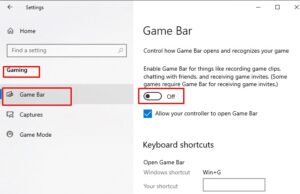
Method 2: Turn Off Xbox Game Bar and Background Captures
Disabling resource-heavy background recording tools frees up critical CPU cycles:
Press
Win + Ito open Settings.Navigate to Gaming > Xbox Game Bar and toggle it Off.
Go back to Gaming > Captures and ensure “Record what happened” or background recording is completely disabled.
Verification: Check your Task Manager while playing to confirm that background recording processes are no longer consuming system resources.
Method 3: Switch to Ultimate Performance Power Plan
Forcing your system components to stay at maximum frequency prevents sudden downclocking:
Press
Win + R, typepowercfg.cpland press Enter to open Power Options.Select High performance (or Ultimate Performance if enabled via Command Prompt).
Ensure your processor minimum and maximum state are both set to 100%.
Verification: Monitor your in-game FPS stability to ensure frame rates remain consistent without sudden drops.
Frequently Asked Questions (FAQs)
Q: Why does my game stutter even with a high-end graphics card?
A: Even powerful hardware can suffer from stutters due to background software conflicts, thermal throttling, shader compilation issues, or outdated graphics drivers.
Q: Does Windows 11 Game Mode help improve FPS?
A: Yes, Game Mode prioritizes system resources for your active game, though occasionally third-party overlays can conflict with it, causing minor frame dips.
Conclusion
Keeping your system gaming performance at its peak ensures a smooth and immersive competitive experience. By mastering these techniques to fix windows 11 gaming stuttering fps drop, you can eliminate lag spikes and enjoy seamless frame rates.
Important Note:
Always keep your GPU drivers updated to the latest Game Ready or Studio releases provided by NVIDIA or AMD for optimal performance.
Final Thoughts on Gaming Performance and System Optimization
To wrap it up, maintaining a fully tuned operating system environment is crucial for maximum frame rates and hardware longevity. By proactively managing power profiles and disabling unnecessary visual overlays, you protect your gaming sessions against unexpected hiccups and maintain peak digital responsiveness. Always keep regular backups of your important configuration files before executing deep registry modifications. Staying proactive with modern diagnostic tools guarantees long-term gaming efficiency and total peace of mind. fix windows 11 gaming stuttering fps drop